
2. Python Essentials : Python Installation Guide: Downloading and Installing Python on Windows
Python Installation Guide: Downloading and Installing Python on Windows
Python is a powerful and versatile programming language that is widely used across various fields, from web development to data science. If you're just getting started with Python, one of the first steps you'll need to take is to install it on your Windows machine. This guide will walk you through the process of downloading and installing Python on Windows, ensuring you are set up to start coding in no time.
Why Choose Python?
Before we dive into the installation process, let’s briefly discuss why Python is a great choice for beginners and seasoned developers alike:
- Easy to Learn: Python has a simple syntax that makes it accessible for newcomers.
- Versatile: It can be used in web development, data analysis, machine learning, automation, and more.
- Strong Community Support: Python has a vast community and a wealth of resources for learning and troubleshooting.
Step 1: Download Python
To begin the installation, you will first need to download the Python installer.
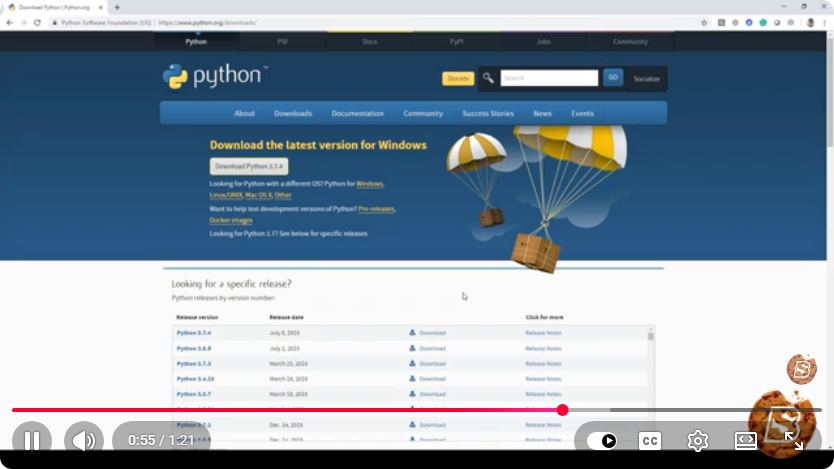
- Visit the Official Python Website: Go to the official Python download page.
- Choose the Latest Version: Click on the “Download Python” button, which typically shows the latest version (e.g., Python 3.x.x).
- Select the Windows Installer: You will be directed to a page that provides various installation options. Look for the Windows installer. Ensure you select the correct architecture (32-bit or 64-bit) for your system. Most modern systems are 64-bit.
Step 2: Run the Installer
After downloading the installer, it’s time to run it.
- Locate the Installer: Navigate to your Downloads folder (or the folder where your browser saves downloaded files) and double-click the Python installer (
python-3.x.x.exe). - Customize Installation:
- At the bottom of the installation window, check the box that says "Add Python to PATH". This option makes it easier to run Python from the command line.
- Click on “Customize Installation” if you want to select optional features, or simply click “Install Now” for the default installation.
- Follow the Prompts: The installer will guide you through the installation process. You may need to grant permission for the installer to make changes to your system.
Step 3: Verify the Installation
Once the installation is complete, it’s important to verify that Python was installed correctly.
Open Command Prompt: Press
Win + R, typecmd, and hit Enter.Check Python Version: In the Command Prompt, type the following command and press Enter:
python --versionThis command should return the version of Python you just installed. If you see a version number, congratulations! Python is successfully installed.
Access Python Interpreter: You can also access the Python interactive shell by simply typing:
pythonYou should see something like:
Python 3.x.x (default, ... , ... )
[GCC ...] on win32
Type "help", "copyright", "credits" or "license" for more information.
>>>
Step 4: Install Pip (Optional)
Pip is the package installer for Python that allows you to install additional packages easily.
- Check for Pip: To see if Pip is already installed, run:
If Pip is installed, you’ll see a version number. If not, it should be included with your Python installation.pip --version
Conclusion
You have successfully downloaded and installed Python on your Windows machine! Now you’re ready to start your programming journey. Whether you plan to build web applications, analyze data, or automate tasks, Python provides the tools you need to succeed.
Next Steps
- Explore Python Resources: Check out online tutorials, courses, and documentation to learn more.
- Install an IDE: Consider installing an Integrated Development Environment (IDE) like PyCharm, Visual Studio Code, or Jupyter Notebook to enhance your coding experience.
With Python installed, you are well on your way to becoming proficient in one of the most popular programming languages today. Happy coding!
Connect with SkillBakery Studios
Explore more tutorials, tools, and resources:
Posted by SkillBakery Studios


 Hello, my name is Jack Sparrow. I'm a 50 year old self-employed Pirate from the Caribbean.
No comments:
Post a Comment