
27. Seamless Integration: How Azure Function App Connects with Cosmos DB
Seamless Integration: How Azure Function App Connects with Cosmos DB
In today's cloud-driven world, the ability to integrate various services is a crucial skill for developers. One of the most powerful combinations is Azure Function Apps and Azure Cosmos DB. This post will guide you through the seamless integration of these two services, enabling you to create efficient, serverless applications that can scale effortlessly.
What are Azure Functions and Cosmos DB?
Azure Functions
Azure Functions is a serverless compute service that allows you to run event-driven code without the need to manage infrastructure. It lets you focus on building your application without worrying about the underlying hardware.
Azure Cosmos DB
Azure Cosmos DB is a globally distributed, multi-model database service designed to provide high availability, low latency, and scalability. It supports various data models, including document, key-value, graph, and column-family databases.
Use Case for Integration
Integrating Azure Functions with Cosmos DB is ideal for applications that require real-time data processing and storage. For instance, you can create a serverless application that processes incoming data (like user information or telemetry data) and stores it in Cosmos DB for further analysis.
Steps to Integrate Azure Function App with Cosmos DB
Step 1: Set Up Your Azure Environment
Before you start, ensure you have an Azure subscription. Once you’re signed in, follow these steps:
Create a Cosmos DB Account:
- Go to the Azure portal.
- Click on "Create a resource" and select "Azure Cosmos DB."
- Choose the API you want to use (SQL, MongoDB, etc.), and fill in the required details.
- Click "Review + Create" and then "Create."
Create a Function App:
- In the Azure portal, click on "Create a resource" and select "Function App."
- Fill in the necessary details like subscription, resource group, and hosting plan.
- Choose your runtime stack (e.g., .NET, Node.js).
- Click "Review + Create" and then "Create."
Step 2: Configure Cosmos DB Connection
To connect your Azure Function to Cosmos DB, you need to set up the connection string:
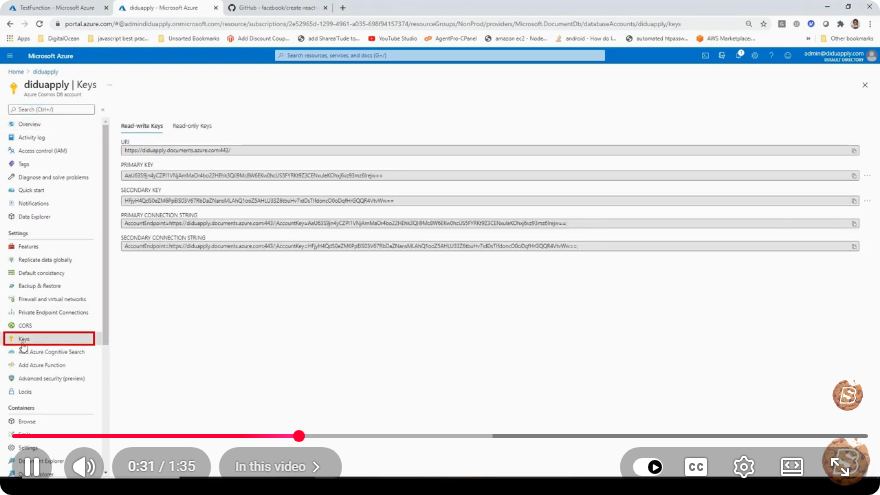
- Navigate to your Cosmos DB account in the Azure portal.
- Click on "Keys" and copy the "Primary Connection String."
- Go to your Function App and click on "Configuration" under the "Settings" section.
- Add a new application setting:
- Name:
CosmosDBConnectionString - Value: (Paste your connection string here)
- Name:
Step 3: Create an Azure Function
Now it’s time to create the function that will interact with Cosmos DB.
- In your Function App, navigate to "Functions" and click on "+ Add."
- Choose a template (e.g., HTTP trigger) that suits your use case.
- Name your function and click "Add."
Step 4: Write the Code
In this step, you'll write the code to interact with Cosmos DB. Here’s a simple example using JavaScript (Node.js):
const { CosmosClient } = require('@azure/cosmos');

const cosmosClient = new CosmosClient(process.env.CosmosDBConnectionString);
const databaseId = 'YourDatabaseId';
const containerId = 'YourContainerId';

module.exports = async function (context, req) {
    const { resource: createdItem } = await cosmosClient
        .database(databaseId)
        .container(containerId)
        .items.create(req.body);

    context.res = {
        status: 201,
        body: createdItem,
    };
};
Step 5: Test Your Function
Deploy your function and test it. You can use tools like Postman or CURL to send HTTP requests to your function’s endpoint. Ensure that you pass the appropriate JSON payload that matches your Cosmos DB schema.
Step 6: Monitor and Optimize
After deployment, monitor your function app using Azure Monitor. Look for performance metrics and logs to optimize your function for better performance and cost efficiency.
Conclusion
Integrating Azure Function Apps with Cosmos DB opens up a world of possibilities for building scalable, serverless applications. By following the steps outlined above, you can leverage the power of Azure to create applications that respond to real-time events, all while maintaining a robust data storage solution.
As cloud technologies continue to evolve, mastering these integrations will be invaluable for your development toolkit. Happy coding!
Connect with SkillBakery Studios
Explore more tutorials, tools, and resources:
Posted by SkillBakery Studios


 Hello, my name is Jack Sparrow. I'm a 50 year old self-employed Pirate from the Caribbean.
No comments:
Post a Comment