
ASP NetMVC Core Introduction 53 seconds
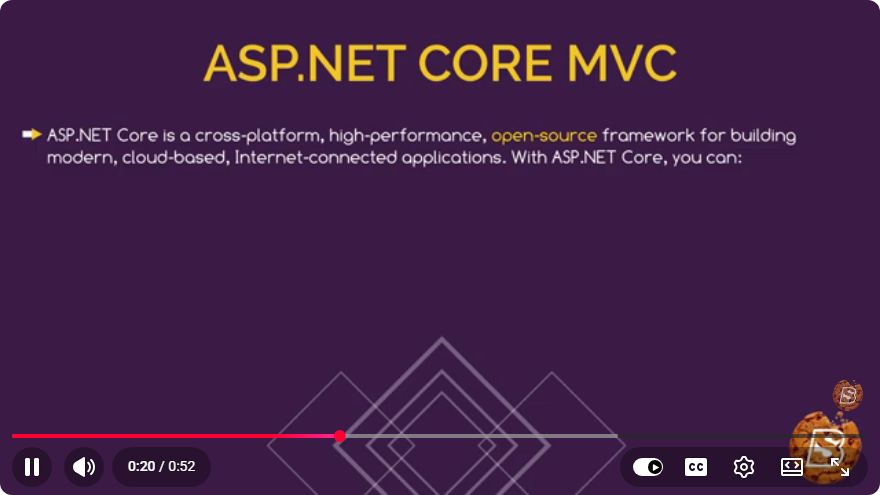
Introduction to ASP.NET Core MVC in 53 Seconds
In the rapidly evolving world of web development, having a solid grasp of modern frameworks is essential. One such framework is ASP.NET Core MVC, a powerful and versatile platform for building web applications. In this blog post, we'll explore the core concepts of ASP.NET Core MVC, providing you with a quick yet comprehensive guide to get started.
What is ASP.NET Core MVC?
ASP.NET Core MVC is a framework for building web applications and APIs using the Model-View-Controller (MVC) architectural pattern. Developed by Microsoft, it is a lightweight, open-source, and cross-platform framework that allows developers to create dynamic web applications with ease.
Key Features of ASP.NET Core MVC
- Cross-Platform: ASP.NET Core can run on Windows, macOS, and Linux, providing flexibility in deployment.
- Modular Design: The framework is composed of several NuGet packages, enabling developers to include only what they need.
- Dependency Injection: Built-in support for dependency injection simplifies the management of application dependencies.
- Unified Development Model: ASP.NET Core allows developers to create both web applications and APIs with a unified approach.
- High Performance: Optimized for speed, ASP.NET Core MVC applications are designed to handle high traffic efficiently.
Getting Started with ASP.NET Core MVC
To create your first ASP.NET Core MVC application, follow these steps:
Prerequisites
Before diving into the code, ensure you have the following installed:
- .NET SDK (version 6.0 or later recommended)
- A code editor like Visual Studio or Visual Studio Code
Creating a New Project
Open the command line and navigate to the directory where you want to create your project.
Run the following command to create a new MVC project:
dotnet new mvc -n MyFirstMvcAppThis command creates a new folder named
MyFirstMvcAppcontaining the necessary files for an MVC application.Navigate into your project directory:
cd MyFirstMvcApp
Running the Application
To run your newly created ASP.NET Core MVC application, execute the following command:
dotnet run
Once the application is running, open your web browser and navigate to http://localhost:5000 (or the URL provided in the command line) to see your application in action.
Understanding the Project Structure
When you create an ASP.NET Core MVC application, you'll notice several key folders and files:
- Controllers: Contains classes that handle incoming requests and return responses.
- Models: Represents the application's data and business logic.
- Views: Contains the user interface files (Razor views) that render the HTML.
- wwwroot: Serves static files like CSS, JavaScript, and images.
- Startup.cs: Configures services and the application's request pipeline.
Example: Creating a Simple Controller
Let’s create a simple controller to demonstrate the MVC pattern. Inside the Controllers folder, create a new file named HomeController.cs and add the following code:
using Microsoft.AspNetCore.Mvc;

namespace MyFirstMvcApp.Controllers
{
    public class HomeController : Controller
    {
        public IActionResult Index()
        {
            return View();
        }
    }
}
Creating a View
Next, create a view for the Index action. Inside the Views folder, create a new folder named Home, and within that folder, create a file named Index.cshtml:
@{
    ViewData["Title"] = "Home Page";
}

<h1>Welcome to My First MVC App</h1>
<p>This is a simple ASP.NET Core MVC application.</p>
Conclusion
ASP.NET Core MVC is a powerful framework for building modern web applications. With its modular design, high performance, and cross-platform capabilities, it enables developers to create robust applications efficiently. In just a few steps, you can set up your first MVC application and start building your web projects.
As you grow more comfortable with ASP.NET Core MVC, consider exploring advanced topics such as routing, middleware, and database integration. Happy coding!
Connect with SkillBakery Studios
Explore more tutorials, tools, and resources:
Posted by SkillBakery Studios


 Hello, my name is Jack Sparrow. I'm a 50 year old self-employed Pirate from the Caribbean.
No comments:
Post a Comment