
Git - Remove Untracked Files
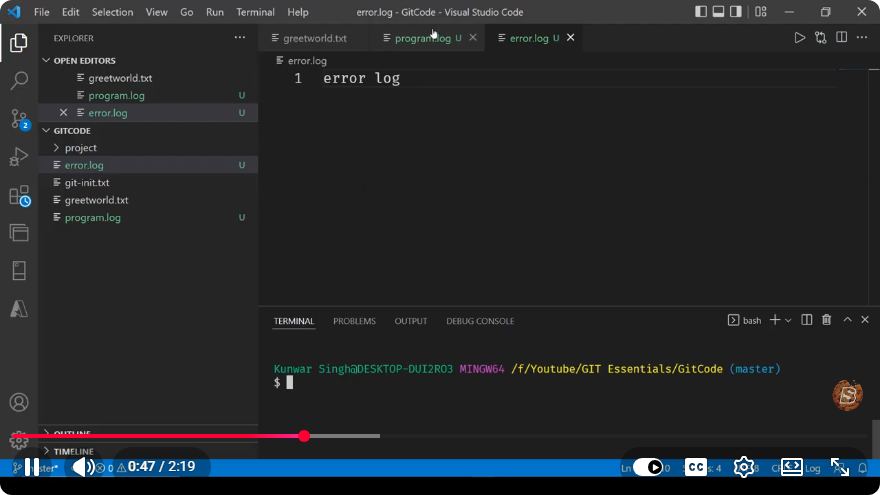
How to Remove Untracked Files in Git
Managing files in a Git repository can sometimes become cumbersome, especially when dealing with untracked files. Untracked files are those that are not staged or committed to the repository. They can clutter your workspace and make it hard to focus on the changes that matter. In this post, we’ll explore how to effectively remove untracked files in Git, ensuring a clean working directory.
Understanding Untracked Files
Before diving into the removal process, it’s essential to understand what untracked files are. These files exist in your working directory but have not been added to the staging area using the git add command. They might include:
- New files that were created but not yet added to the repository.
- Temporary files generated by your development environment.
To see which files are untracked, you can run:
git status
This command will display the current status of your working directory, including any untracked files.
Removing Untracked Files
Using git clean
The primary command for removing untracked files in Git is git clean. This command is powerful and should be used with caution as it permanently deletes files from your working directory.
Basic Usage of git clean
To remove untracked files, you can use:
git clean -f
- The
-fflag stands for "force". It is necessary because Git protects you from accidentally deleting files.
Removing Untracked Directories
If you also want to remove untracked directories in addition to files, you can add the -d option:
git clean -fd
Previewing What Will Be Removed
Before executing the clean command, it’s wise to preview what files and directories will be affected. You can do this using the -n (or --dry-run) option:
git clean -fdn
This command will list the untracked files and directories that would be removed without actually deleting them.
Summary of Options
Here’s a quick reference for the options you can use with git clean:
-f: Force removal of untracked files.-d: Remove untracked directories in addition to untracked files.-n: Show what would be removed without actually deleting anything.
Conclusion
Cleaning up untracked files in Git is a straightforward process with the git clean command. Remember to always use the -n option first to avoid accidental deletions. Keeping your repository clean helps maintain focus and organization, making it easier to manage your code.
Now that you know how to remove untracked files effectively, you can keep your workspace tidy and concentrate on what truly matters—your code! If you have any questions or need further clarifications, feel free to ask in the comments below. Happy coding!
Connect with SkillBakery Studios
Explore more tutorials, tools, and resources:
Posted by SkillBakery Studios


 Hello, my name is Jack Sparrow. I'm a 50 year old self-employed Pirate from the Caribbean.
No comments:
Post a Comment