
Google Chrome Custom Protocol Fix - For Windows OS 2 minutes
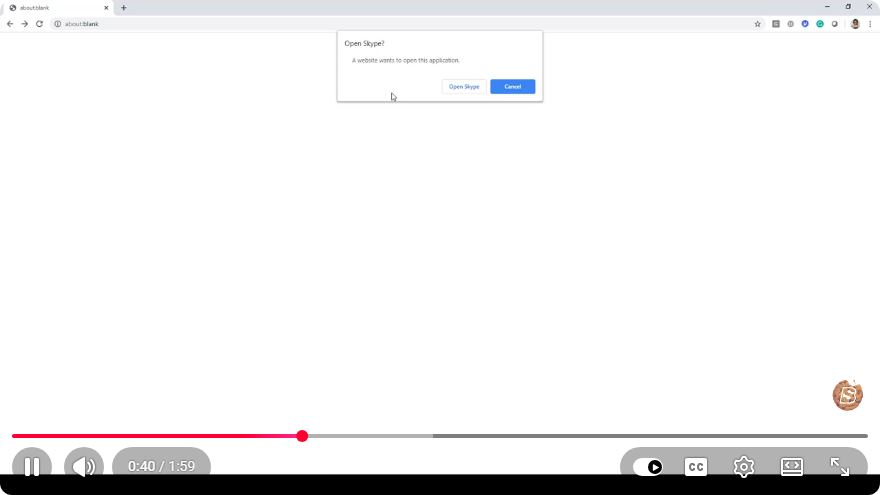
Google Chrome Custom Protocol Fix for Windows OS: A Quick Guide
In today's digital landscape, many applications and services rely on custom protocols to communicate effectively. However, users often face issues when trying to open links that use these protocols in Google Chrome. This tutorial will guide you through the steps to fix custom protocol issues in Windows OS, ensuring a seamless browsing experience.
What Are Custom Protocols?
Custom protocols are specific URL schemes that allow applications to interact with each other. For instance, links that start with mailto:, ftp:, or custom-defined schemes like myapp: are considered custom protocols. When these links do not open as expected in Google Chrome, it can lead to frustration.
Why Do Custom Protocols Fail in Chrome?
The failure of custom protocols in Google Chrome can stem from a few common issues:
- Default application settings: Windows might not have the correct application set to handle the custom protocol.
- Registry issues: Sometimes, the Windows Registry keys associated with the protocol may be misconfigured or missing.
- Browser settings: Chrome may not be configured to allow the custom protocol to launch the associated application.
Steps to Fix Google Chrome Custom Protocol Issues
Follow these steps to rectify the issues with custom protocols in Google Chrome on Windows OS.
Step 1: Check Default App Settings
- Open Windows Settings: Click on the Start menu and select the gear icon to open Settings.
- Navigate to Apps: Click on the "Apps" section.
- Default Apps: On the left sidebar, choose "Default apps."
- Choose Default Apps by Protocol: Scroll down and click on "Choose default apps by protocol."
- Locate the Protocol: Find your custom protocol (e.g.,
myapp:) in the list. - Set the Default Application: Click on it and select the appropriate application that should handle this protocol.
Step 2: Modify the Windows Registry
Warning: Editing the Windows Registry can cause system issues if done incorrectly. Always back up your registry before making changes.
- Open the Registry Editor: Press
Win + Rto open the Run dialog, typeregedit, and press Enter. - Navigate to Protocols: Go to the following path:
ReplaceHKEY_CLASSES_ROOT\[YourCustomProtocol][YourCustomProtocol]with the actual protocol name (e.g.,myapp). - Check the (Default) Value: Ensure it points to the correct application. If it is not set, you can create a new String Value and set it to the application's executable path.
- Create a Command Subkey:
- Right-click on your protocol key, select New > Key, and name it
shell. - Under
shell, create another key namedopen. - Under
open, create another key namedcommand. - Set the (Default) value of
commandto:
Replace"C:\Path\To\Application.exe" "%1"C:\Path\To\Application.exewith the accurate path to your application.
- Right-click on your protocol key, select New > Key, and name it
Step 3: Update Chrome Settings
Ensure that Google Chrome is updated to the latest version to avoid any potential bugs that could affect protocol handling.
- Open Chrome: Launch Google Chrome.
- Access Settings: Click on the three dots in the upper right corner and select "Settings."
- About Chrome: Scroll down and click on "About Chrome" to check for updates. Install any pending updates.
Step 4: Test the Protocol
After following the above steps, test the custom protocol to see if it opens correctly:
- Open Chrome.
- In the address bar, type your custom protocol link (e.g.,
myapp://test). - Press Enter and observe if the associated application launches.
Conclusion
Fixing custom protocol issues in Google Chrome on Windows can significantly enhance your workflow and improve your experience with various applications. By adjusting default app settings, modifying the Windows Registry, and ensuring your browser is up to date, you can resolve most issues related to custom protocols.
If you still encounter problems after following this guide, consider reaching out to the support community or the application developer for further assistance. Happy browsing!
Connect with SkillBakery Studios
Explore more tutorials, tools, and resources:
Posted by SkillBakery Studios


 Hello, my name is Jack Sparrow. I'm a 50 year old self-employed Pirate from the Caribbean.
No comments:
Post a Comment