
Mapping IP To Domain - Amazon Web Services – LAMP Setup-Web Development
Mapping IP to Domain: A Guide to Setting Up LAMP on AWS
Setting up a LAMP (Linux, Apache, MySQL, PHP) stack on Amazon Web Services (AWS) is a popular choice for web developers looking to host their applications in the cloud. One crucial step in this process is mapping an IP address to a domain name, which allows users to access your site using a more user-friendly URL. In this blog post, we will walk you through the steps needed to map your IP to a domain on AWS, ensuring your web application is accessible to everyone.
What You Will Need
Before we get started, make sure you have the following:
- An AWS account
- An EC2 instance running a LAMP stack
- A registered domain name (you can buy one through AWS Route 53 or any other domain registrar)
Step 1: Obtain Your EC2 Instance's Public IP Address
After launching your EC2 instance, you will need to find its public IP address. This can be done by following these steps:
- Log in to the AWS Management Console.
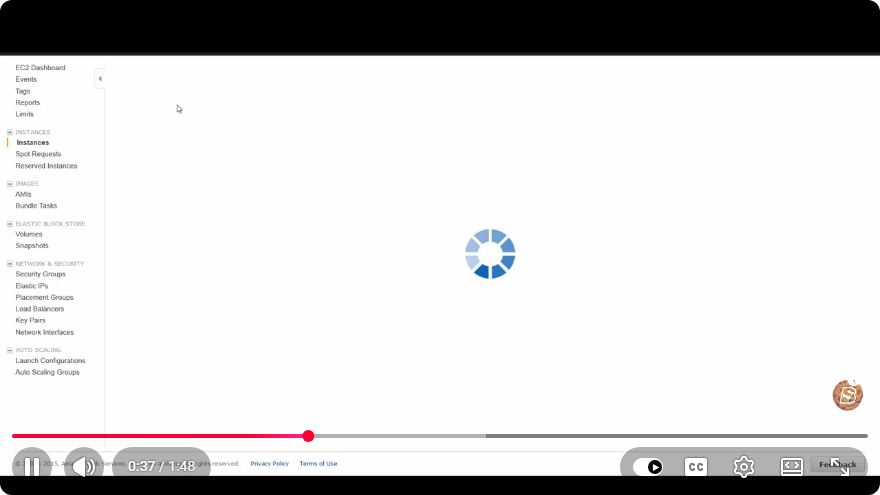
- Navigate to the EC2 Dashboard.
- Click on “Instances” in the sidebar.
- Locate your instance and find the “IPv4 Public IP” in the details section.
Example of Finding Your Public IP
Your EC2 instance's details might look something like this:
Instance ID: i-0abcd1234efgh5678
IPv4 Public IP: 203.0.113.25
Step 2: Configure Your Domain Name
Next, you will need to configure your domain name to point to your EC2 instance's public IP address. This step varies slightly depending on where you purchased your domain, but the general process is similar.
Using AWS Route 53
If you purchased your domain through AWS Route 53, follow these steps:
- Go to the Route 53 Dashboard.
- Click on “Hosted Zones.”
- Select your domain from the list.
- Click on “Create Record Set.”
- Enter the following details:
- Name: Leave this blank for the root domain or enter "www" for a subdomain.
- Type: Select "A - IPv4 address."
- Value: Enter your EC2 instance’s public IP address (e.g.,
203.0.113.25). - TTL: You can leave the default value.
- Click “Create.”
Using Other Domain Registrars
If your domain is registered with another provider, you will typically need to:
- Log in to your domain registrar's control panel.
- Find the DNS management section.
- Create an A record pointing to your EC2 instance's public IP address.
- Host/Name: Leave blank for the root domain or enter "www" for a subdomain.
- Type: A
- Value: Your EC2 public IP (e.g.,
203.0.113.25).
- Save the changes.
Step 3: Test Your Domain Configuration
After you have set up the A record, it may take some time for the DNS changes to propagate. This period can range from a few minutes to 48 hours. You can check if your domain is correctly mapped to your EC2 instance by:
- Opening a web browser.
- Typing your domain name in the address bar.
- Pressing Enter.
If configured correctly, you should see the default Apache welcome page or your web application.
Step 4: Secure Your Domain with HTTPS (Optional)
To enhance the security of your web application, consider setting up HTTPS. You can use Let's Encrypt for a free SSL certificate. Here’s a brief overview of how to do this:
- SSH into your EC2 instance.
- Install Certbot:
sudo apt-get update sudo apt-get install certbot python3-certbot-apache - Run Certbot to obtain and install the SSL certificate:
sudo certbot --apache - Follow the prompts to enter your email and agree to the terms of service.
With that, your site should now be accessible via HTTPS.
Conclusion
Mapping an IP address to a domain name on AWS is an essential step in setting up your web application. By following the steps outlined in this tutorial, you can ensure that your site is accessible to users worldwide. Remember to consider security options such as HTTPS for a more secure web experience. Happy coding!
Connect with SkillBakery Studios
Explore more tutorials, tools, and resources:
Posted by SkillBakery Studios


 Hello, my name is Jack Sparrow. I'm a 50 year old self-employed Pirate from the Caribbean.
No comments:
Post a Comment