
Visual Studio 2019 Tip - Convert For Loop To ForEach Loop 44 seconds
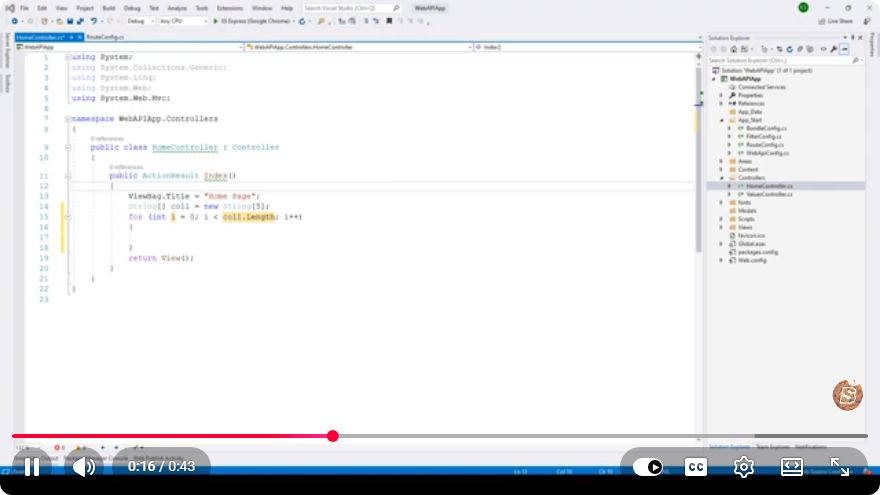
Visual Studio 2019 Tip: Convert For Loop to ForEach Loop
In the world of programming, writing clean and efficient code is crucial. One way to enhance readability and reduce the potential for errors is by utilizing the appropriate loop structures. In this post, we’ll explore how to convert a traditional for loop into a foreach loop in Visual Studio 2019, making your code more elegant and easier to understand.
Understanding For Loops and ForEach Loops
For Loop
A for loop is a control flow statement that allows code to be executed repeatedly based on a boolean condition. It is commonly used when the number of iterations is known beforehand. A typical structure of a for loop looks like this:
for (int i = 0; i < array.Length; i++)
{
    Console.WriteLine(array[i]);
}
ForEach Loop
On the other hand, a foreach loop is specifically designed for iterating over collections. It abstracts the underlying mechanics of the iteration, resulting in cleaner and more readable code. The equivalent foreach loop for the above example would look like this:
foreach (var item in array)
{
    Console.WriteLine(item);
}
Using a foreach loop not only simplifies the syntax but also minimizes the risk of errors such as off-by-one mistakes.
Converting For Loop to ForEach Loop in Visual Studio 2019
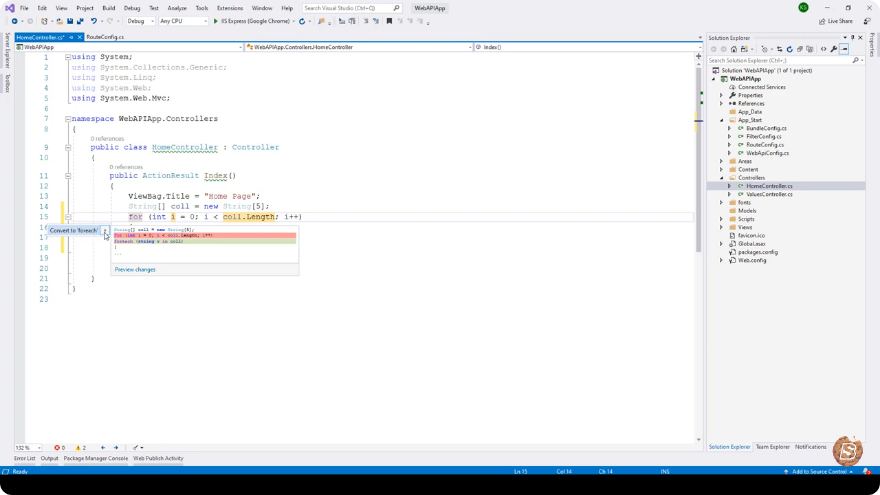
Visual Studio 2019 provides a convenient way to refactor your code. Here’s how to convert a for loop into a foreach loop:
Step-by-Step Guide
Open Your Project: Launch Visual Studio 2019 and open the project containing the code you want to refactor.
Locate the For Loop: Navigate to the section of your code where the
forloop is defined.Highlight the For Loop: Select the entire
forloop code block that you wish to convert.Use Quick Actions:
- Right-click on the selected code, and you’ll see a context menu.
- Look for the option labeled
Quick Actions and Refactorings...or simply pressCtrl + .(Control + Period) on your keyboard.
Select Convert to ForEach: From the list of suggested actions, choose
Convert to foreach. Visual Studio will automatically refactor your code, replacing theforloop with aforeachloop.
Example Conversion
Let’s consider a practical example. Suppose you have the following for loop iterating through an array of integers:
int[] numbers = { 1, 2, 3, 4, 5 };

for (int i = 0; i < numbers.Length; i++)
{
    Console.WriteLine(numbers[i]);
}
After applying the quick action to convert it to a foreach loop, your code will be modified to:
int[] numbers = { 1, 2, 3, 4, 5 };

foreach (var number in numbers)
{
    Console.WriteLine(number);
}
Benefits of Using ForEach Loops
Readability: The
foreachloop is easier to read and understand, particularly for those unfamiliar with traditionalforloop syntax.Reduced Error Risk: With
foreach, you eliminate potential pitfalls associated with managing loop counters and indices.Cleaner Code: Simplifying your code leads to better maintainability and clarity, which is especially beneficial in collaborative projects.
Conclusion
Converting a for loop to a foreach loop can significantly improve the quality of your code. With Visual Studio 2019’s built-in refactoring tools, this process is straightforward and efficient. By adopting this practice, you can create cleaner, safer, and more maintainable codebases.
For more tips like this, keep exploring and experimenting with the features of Visual Studio 2019. Happy coding!
Connect with SkillBakery Studios
Explore more tutorials, tools, and resources:
Posted by SkillBakery Studios


 Hello, my name is Jack Sparrow. I'm a 50 year old self-employed Pirate from the Caribbean.
No comments:
Post a Comment