
Web Developers : 1-Build a Mobile Application (React Native App) Using Expo CLI
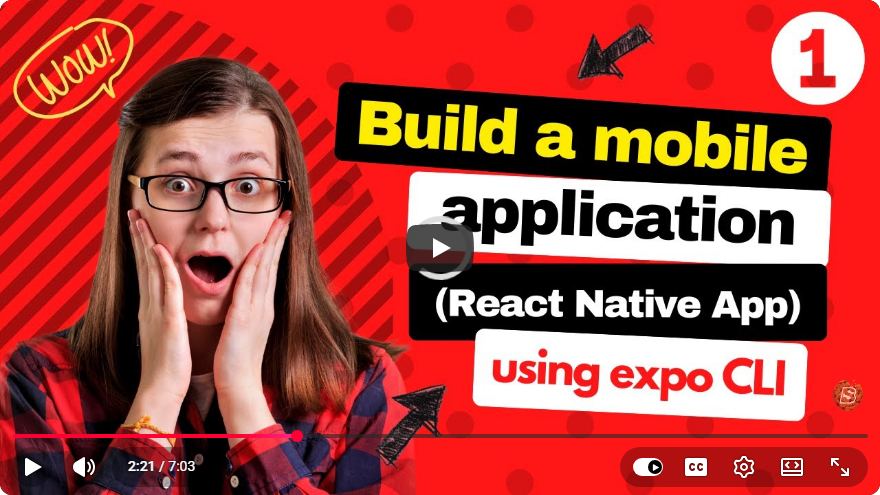
Build a Mobile Application Using React Native and Expo CLI
In the ever-evolving world of mobile application development, React Native has emerged as a popular framework for building cross-platform applications. If you're a web developer looking to transition into mobile app development, this tutorial will guide you through building a simple mobile application using React Native and Expo CLI.
What is React Native?
React Native is an open-source framework created by Facebook that allows developers to build mobile applications using JavaScript and React. It enables you to create native apps for both iOS and Android platforms with a single codebase, simplifying the development process significantly.
What is Expo CLI?
Expo is a framework and platform for universal React applications. It provides tools and services that simplify the development process, allowing you to build your application faster and more efficiently. Expo CLI is a command-line tool that helps set up and manage your React Native projects.
Prerequisites
Before we dive into building our mobile application, let's ensure you have the following prerequisites:
Node.js: Make sure you have Node.js installed. You can download it from nodejs.org.
Expo CLI: Install Expo CLI globally on your machine using npm by running the following command in your terminal:
npm install -g expo-cliText Editor: Use a code editor like Visual Studio Code, Atom, or any text editor of your choice.
Mobile Device or Emulator: You will need a mobile device with the Expo Go app installed or an emulator to run your app.
Step 1: Create a New Expo Project
To start, you need to create a new Expo project. Open your terminal and run the following command:
expo init MyFirstApp
This command will create a new directory called MyFirstApp. You will be prompted to choose a template; for this tutorial, select the blank template.
Once the project is created, navigate into the project folder:
cd MyFirstApp
Step 2: Start the Development Server
Now that your project is set up, you can start the development server. Run the following command:
expo start
This will launch the Expo development environment in your browser, providing you with a QR code to scan with your mobile device.
Step 3: Run the App on Your Device
- On a Physical Device: If you have the Expo Go app installed on your mobile device, scan the QR code displayed in the browser to load your app.
- On an Emulator: If you prefer using an emulator, you can select the Android or iOS option in the Expo development environment.
Step 4: Edit the App
Now that your app is running, let’s customize it a bit. Open the App.js file in your code editor. You will find some default code. Replace it with the following code to create a simple "Hello, World!" application:
import React from 'react';
import { StyleSheet, Text, View } from 'react-native';

export default function App() {
  return (
    <View style={styles.container}>
      <Text style={styles.text}>Hello, World!</Text>
    </View>
  );
}

const styles = StyleSheet.create({
  container: {
    flex: 1,
    justifyContent: 'center',
    alignItems: 'center',
    backgroundColor: '#fff',
  },
  text: {
    fontSize: 20,
    color: '#333',
  },
});
Code Explanation
- React & React Native Imports: The code imports React and necessary components (StyleSheet, Text, View) from 'react-native'.
- App Component: The main functional component, which returns a View containing a Text element displaying "Hello, World!".
- Styles: The styling is done using the StyleSheet API, centering the text in the middle of the screen.
Step 5: Save and View Changes
After making these changes, save the App.js file. Your app will automatically reload, and you should see "Hello, World!" displayed on your screen.
Conclusion
Congratulations! You have successfully created your first mobile application using React Native and Expo CLI. This tutorial has provided you with a foundational understanding of how to set up a React Native project and make basic customizations.
Next Steps
From here, you can explore more advanced topics such as:
- Adding navigation using React Navigation
- Integrating APIs for data fetching
- Building more complex UI components
Remember, practice is key in mobile app development. Keep experimenting with different features and functionalities to enhance your skills!
For more resources, check the official React Native documentation and Expo documentation. Happy coding!
Connect with SkillBakery Studios
Explore more tutorials, tools, and resources:
Posted by SkillBakery Studios


 Hello, my name is Jack Sparrow. I'm a 50 year old self-employed Pirate from the Caribbean.
No comments:
Post a Comment