
Windows 10 : Personalize Your Task bar
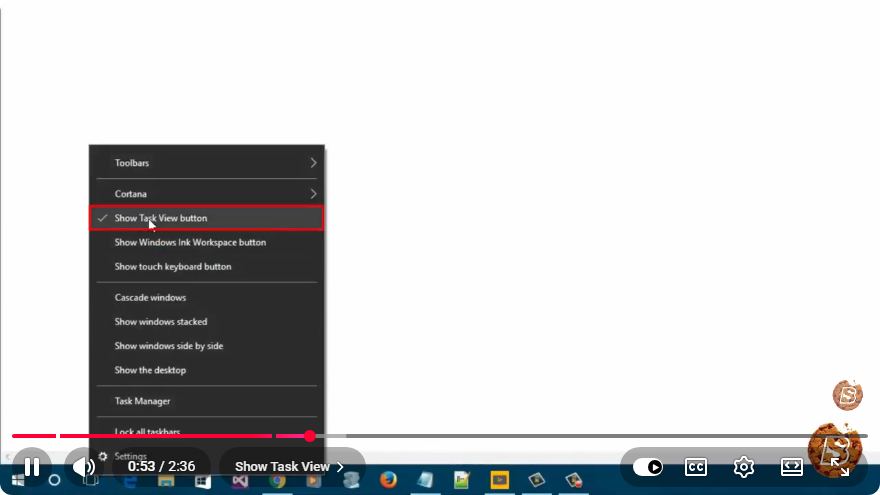
Personalizing Your Windows 10 Taskbar: A Step-by-Step Guide
The taskbar in Windows 10 is more than just a place for icons; it’s a powerful tool that can be customized to enhance your productivity and personalize your computing experience. In this tutorial, we will explore how to personalize your taskbar effectively in just a few simple steps.
Why Personalize Your Taskbar?
Customizing your taskbar allows you to:
- Access frequently used applications quickly.
- Organize your workspace to suit your workflow.
- Improve your overall computing experience by tailoring it to your preferences.
Getting Started
Before diving into the customization options, ensure that your Windows 10 is up to date. You can check for updates by navigating to Settings > Update & Security > Windows Update.
Accessing Taskbar Settings
- Right-click on an empty space on the taskbar.
- Select Taskbar settings from the context menu. This will open the Taskbar settings window where you can adjust various options.
Customization Options
1. Pinning Applications
Pinning applications to the taskbar allows you to have your most-used programs readily accessible.
To pin an application:
- Open the application you want to pin.
- Right-click its icon on the taskbar.
- Select Pin to taskbar.
To unpin an application:
- Right-click the pinned icon.
- Select Unpin from taskbar.
2. Adjusting Taskbar Location
Windows 10 allows you to place the taskbar at various locations on your screen.
- To change the taskbar location:
- In the Taskbar settings window, find the Taskbar location on screen dropdown.
- Choose from Bottom, Top, Left, or Right.
3. Changing Taskbar Color
Aesthetic preferences often play a role in how we interact with our devices.
- To change the color:
- Go to Settings > Personalization > Colors.
- Scroll down to the Choose your color dropdown and select your preference.
- You can also enable Show accent color on the following surfaces and select Start, taskbar, and action center to apply colors.
4. Utilizing Taskbar Toolbars
Toolbars can be added to the taskbar to access folders or custom shortcuts.
- To add a toolbar:
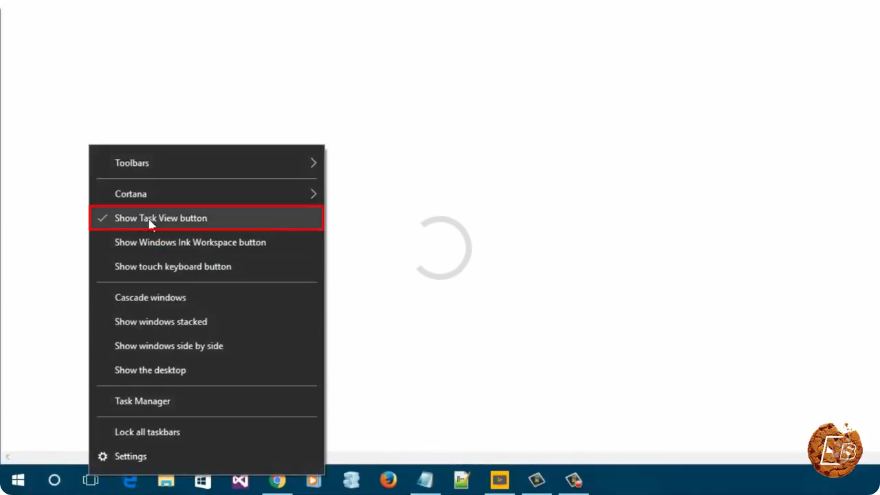
- Right-click on the taskbar.
- Hover over Toolbars and select New toolbar.
- Browse to the folder you want to add and click Select Folder.
5. Hiding the Taskbar
If you prefer a distraction-free workspace, hiding the taskbar might be a suitable option.
- To hide the taskbar:
- In the Taskbar settings, toggle Automatically hide the taskbar in desktop mode to On.
- You can also do the same for tablet mode if you use a device that supports it.
Additional Tips
- Use Task View: Press
Windows + Tabto access the Task View, enabling you to manage multiple desktops and applications. - Customize Notifications: Manage what icons appear in the taskbar by going to Settings > Personalization > Taskbar and adjusting the Notification area settings.
Conclusion
Personalizing your Windows 10 taskbar can significantly improve your workflow and overall experience with the operating system. By following the steps outlined in this tutorial, you can create a taskbar that reflects your personal style and meets your productivity needs. Experiment with different settings to find what works best for you!
For more tips and tricks, keep exploring our blog or check out related videos on YouTube. Happy customizing!
Connect with SkillBakery Studios
Explore more tutorials, tools, and resources:
Posted by SkillBakery Studios


 Hello, my name is Jack Sparrow. I'm a 50 year old self-employed Pirate from the Caribbean.
No comments:
Post a Comment