
22. Effortless Content Upload: Managing Your Data with Azure Storage Explorer
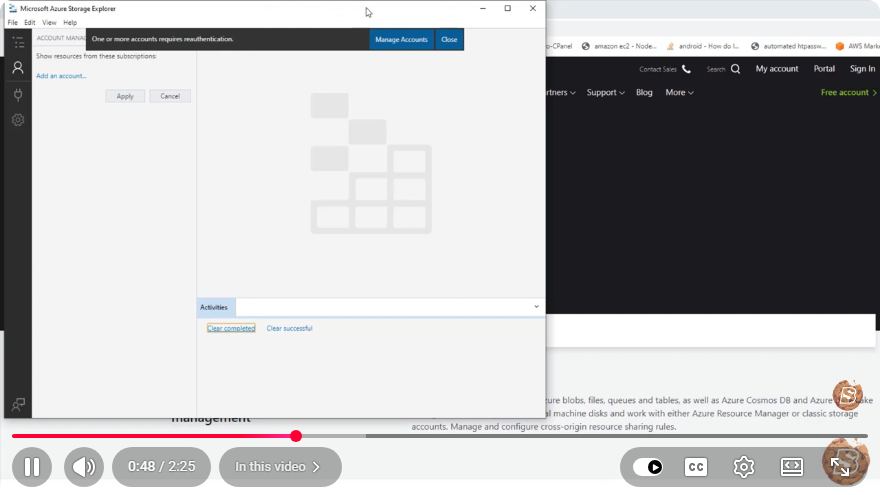
Effortless Content Upload: Managing Your Data with Azure Storage Explorer
In today’s digital landscape, managing your data effectively is crucial for any developer or organization. Azure Storage Explorer is a powerful tool that simplifies the process of uploading, managing, and accessing your data stored in Azure. This blog post will guide you through the essential features of Azure Storage Explorer, enabling you to upload content effortlessly.
What is Azure Storage Explorer?
Azure Storage Explorer is a free, standalone application that allows you to easily work with Azure Storage resources. It provides a user-friendly interface to manage your Azure storage accounts, making tasks like uploading, downloading, and organizing data straightforward.
Key Features of Azure Storage Explorer
- Multi-Storage Support: Manage blobs, files, queues, and tables across different storage accounts.
- Cross-Platform Compatibility: Available for Windows, macOS, and Linux.
- Security: Integrates with Azure Active Directory for secure authentication.
- Easy Sharing: Share storage resources with your team or collaborators.
Getting Started with Azure Storage Explorer
Step 1: Download and Install
To get started, you’ll need to download Azure Storage Explorer. Follow these steps:
- Visit the Azure Storage Explorer download page.
- Select the appropriate version for your operating system.
- Install the application by following the on-screen instructions.
Step 2: Connect to Your Azure Storage Account
Once you have installed Azure Storage Explorer, follow these steps to connect to your Azure Storage Account:
- Open Azure Storage Explorer.
- Click on the "Add Account" icon in the left-hand panel.
- Choose your authentication method:
- Use a Storage Account Name and Key: Enter your storage account name and key.
- Use Azure AD: Sign in with your Azure Active Directory credentials.
- Click "Next" and then "Connect" to establish the connection.
Step 3: Navigating the Interface
After connecting, you’ll see your storage accounts listed in the left panel. Here’s a quick overview of the interface:
- Left Panel: Displays your storage accounts and their corresponding resources.
- Central Panel: Displays the content of the selected account or resource.
- Right Panel: Shows properties and details for the selected item.
Effortless Content Upload
Now that you’re set up and familiar with the interface, let’s dive into uploading content to your Azure Storage Account.
Step 1: Choose Your Storage Type
Azure Storage Explorer supports multiple storage types such as Blob Storage, File Shares, Tables, and Queues. For this tutorial, we will focus on Blob Storage, which is ideal for storing unstructured data like images, videos, and documents.
Step 2: Create a New Blob Container
- Right-click on the Blob Containers node in the left panel.
- Select "Create Blob Container."
- Enter a name for your container and click "OK."
Step 3: Upload Content
- Navigate to the newly created blob container in the left panel.
- Right-click on the container and select "Upload."
- Choose the files or folders you want to upload from your local machine.
- Click "Upload" to start the transfer.
You’ll see a progress bar indicating the upload status. Once completed, your files will be available in the blob container.
Step 4: Managing Uploaded Content
After uploading, you can manage your content with ease. Here are a few management tasks you can perform:
- Rename Files: Right-click on the file and select "Rename."
- Delete Files: Right-click on the file and choose "Delete."
- Download Files: Right-click on the file and select "Download" to save it to your local machine.
Conclusion
Azure Storage Explorer simplifies the process of managing your data in Azure, making it easy for developers and teams to upload, organize, and retrieve files effortlessly. By following the steps outlined in this tutorial, you can efficiently handle your content uploads and optimize your data management practices.
For further exploration, consider delving into other features of Azure Storage Explorer, such as sharing resources with team members or integrating the tool into your development workflow.
Happy exploring!
Connect with SkillBakery Studios
Explore more tutorials, tools, and resources:
Posted by SkillBakery Studios


 Hello, my name is Jack Sparrow. I'm a 50 year old self-employed Pirate from the Caribbean.
No comments:
Post a Comment