
Developing Web App using React Cosmos DB - Introduction
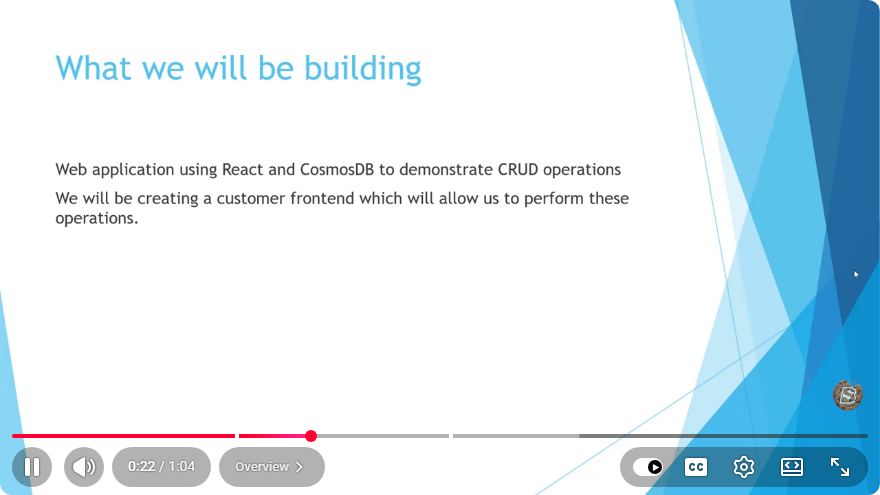
Developing a Web App Using React and Cosmos DB: An Introduction
In today’s digital age, building a robust web application requires a solid understanding of both front-end and back-end technologies. One of the most popular front-end libraries is React, while Microsoft Azure's Cosmos DB provides a powerful NoSQL database solution. This blog post will guide you through the fundamentals of developing a web application using React and Cosmos DB.
Table of Contents
- What is React?
- What is Cosmos DB?
- Setting Up Your Environment
- Creating a New React Application
- Integrating Cosmos DB with React
- Conclusion
What is React?
React is a JavaScript library developed by Facebook for building user interfaces, particularly single-page applications where data can change dynamically without requiring a page reload. React allows developers to create reusable UI components, which can be easily managed and updated.
Key Features of React
- Component-Based Architecture: Build encapsulated components that manage their own state.
- Virtual DOM: React uses a virtual representation of the DOM to optimize rendering and improve performance.
- Unidirectional Data Flow: Data flows in one direction, making it easier to understand and debug your app.
What is Cosmos DB?
Azure Cosmos DB is a globally distributed, multi-model database service designed for high availability and low latency. It supports various data models, including documents, key-value pairs, graphs, and column-family data.
Key Features of Cosmos DB
- Global Distribution: Easily replicate your database across multiple regions.
- Scalability: Automatically scale throughput and storage.
- Multiple APIs: Supports SQL, MongoDB, Cassandra, Gremlin, and Table APIs.
Setting Up Your Environment
Before you start developing your web application, you need to set up your development environment. Here are the essential tools you will need:
- Node.js: Make sure you have Node.js installed on your machine. You can download it here.
- Visual Studio Code: This is a popular code editor among developers. Download it here.
- Azure Account: If you don’t already have one, create an Azure account to access Cosmos DB.
Creating a New React Application
Once your environment is set up, you can create a new React application using Create React App. This tool sets up a new React project with a sensible default configuration.
Step-by-Step Guide
Open your terminal.
Run the following command to create a new React app:
npx create-react-app my-appNavigate into your project directory:
cd my-appStart the development server:
npm start
Your new React application should now be running at http://localhost:3000.
Integrating Cosmos DB with React
To connect your React application to Cosmos DB, you will need to set up an Azure Cosmos DB instance and use the appropriate SDK to interact with the database.
Step-by-Step Guide
Create a Cosmos DB Account:
- Log in to the Azure portal.
- Click on “Create a resource” and then select “Azure Cosmos DB”.
- Choose the API you are comfortable with (for example, SQL API).
- Fill in the required information and click “Create”.
Obtain Connection String:
- Once your Cosmos DB account is created, navigate to the “Keys” section in the Azure portal.
- Copy the connection string as you will need it to connect your React app to Cosmos DB.
Install Required SDK:
- You can use the Azure Cosmos DB JavaScript SDK. Install it in your React application using npm:
npm install @azure/cosmosCreate a Service File:
- In your React app, create a new file called
cosmosService.js. This file will handle all interactions with the Cosmos DB.
// cosmosService.js const { CosmosClient } = require('@azure/cosmos'); const endpoint = "YOUR_COSMOS_DB_ENDPOINT"; const key = "YOUR_COSMOS_DB_KEY"; const client = new CosmosClient({ endpoint, key }); const databaseId = "YOUR_DATABASE_ID"; const containerId = "YOUR_CONTAINER_ID"; async function getItems() { const container = client.database(databaseId).container(containerId); const query = 'SELECT * from c'; const { resources: items } = await container.items.query(query).fetchAll(); return items; } export { getItems };- In your React app, create a new file called
Utilize the Service in Your React Component:
- Import the service and use it within your React component to fetch data.
// App.js
import React, { useEffect, useState } from 'react';
import { getItems } from './cosmosService';

function App() {
    const [items, setItems] = useState([]);

    useEffect(() => {
        const fetchData = async () => {
            const result = await getItems();
            setItems(result);
        };
        fetchData();
    }, []);

    return (
        <div>
            <h1>Items from Cosmos DB</h1>
            <ul>
                {items.map(item => (
                    <li key={item.id}>{item.name}</li>
                ))}
            </ul>
        </div>
    );
}

export default App;
Conclusion
In this introductory tutorial, we've covered the basics of setting up a web application using React and Azure Cosmos DB. You've learned about the core features of React and Cosmos DB, how to set up your development environment, create a new React application, and integrate it with Cosmos DB.
As you continue to build your application, you can explore more advanced features, such as authentication, complex queries, and state management. Stay tuned for more detailed tutorials that delve deeper into these topics! Happy coding!
Connect with SkillBakery Studios
Explore more tutorials, tools, and resources:
Posted by SkillBakery Studios


 Hello, my name is Jack Sparrow. I'm a 50 year old self-employed Pirate from the Caribbean.
No comments:
Post a Comment