
Javascript - Learn Alpine.JS - Working with Image component
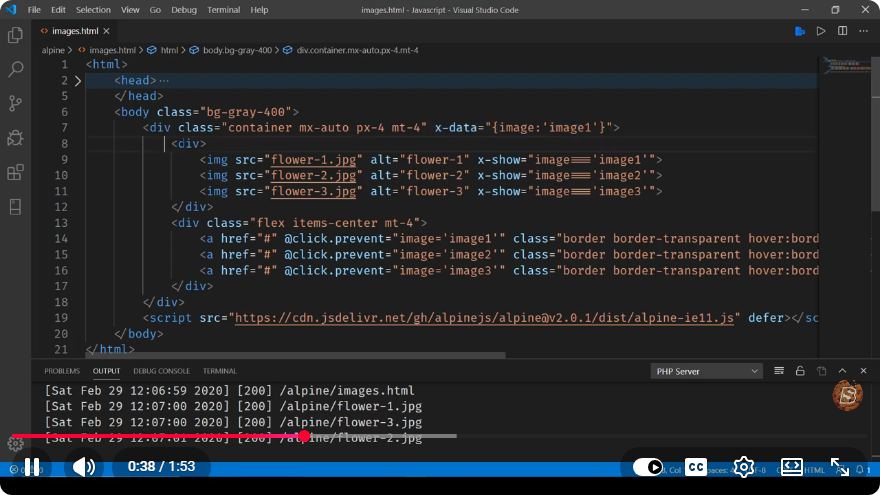
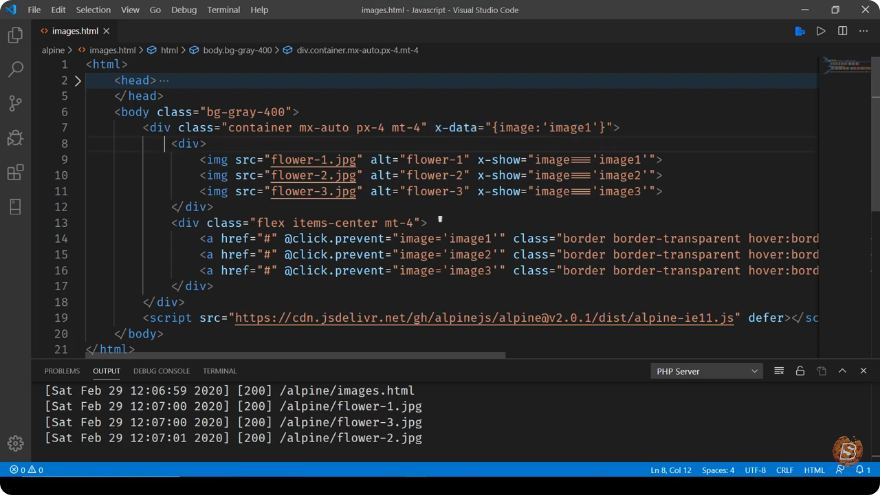
Getting Started with Alpine.js: Working with the Image Component
Alpine.js is a lightweight JavaScript framework that allows developers to create interactive user interfaces with ease. Its syntax is simple and intuitive, making it a popular choice for those looking to enhance their HTML with minimal JavaScript. In this blog post, we will explore how to work with the image component in Alpine.js, based on the insights from the video "Javascript - Learn Alpine.JS - Working with Image component."
What is Alpine.js?
Alpine.js is often compared to Vue.js but comes with a much smaller footprint. It allows you to add interactivity to your web applications directly in your HTML. With Alpine.js, you can create reactive components without the overhead of a larger framework.
Setting Up Alpine.js
Before diving into the image component, you need to set up Alpine.js in your project. You can easily include it via a CDN in your HTML file.
<!DOCTYPE html>
<html lang="en">
<head>
    <meta charset="UTF-8">
    <meta name="viewport" content="width=device-width, initial-scale=1.0">
    <title>Alpine.js Image Component</title>
    <script src="https://cdn.jsdelivr.net/gh/alpinejs/alpine@v3.x.x/dist/cdn.min.js" defer></script>
</head>
<body>
    <div x-data="{ imageUrl: 'https://example.com/image.jpg' }">
        <!-- Image component will go here -->
    </div>
</body>
</html>
In this snippet, we set up a basic HTML structure and included the Alpine.js library. The x-data directive initializes a component with a reactive data property named imageUrl.
Creating an Image Component
Now that we have Alpine.js set up, let's create an interactive image component. We will allow users to change the image displayed by clicking a button.
HTML Structure
<div x-data="{ imageUrl: 'https://example.com/image.jpg' }">
    <img :src="imageUrl" alt="Dynamic Image" class="w-full h-auto" />
    <button @click="imageUrl = 'https://example.com/new-image.jpg'">Change Image</button>
</div>
Explanation
<img :src="imageUrl" />: The:srcdirective is a shorthand forx-bind:src, which binds thesrcattribute of the image to theimageUrlvariable. This means that wheneverimageUrlchanges, the source of the image will also update.<button @click="imageUrl = 'https://example.com/new-image.jpg'" />: The@clickdirective listens for click events on the button. When clicked, it updates theimageUrlwith a new image URL, demonstrating the reactivity of Alpine.js.
Styling the Image
To make the image responsive, we can add some Tailwind CSS classes. If you haven't included Tailwind CSS yet, here's how to do it via CDN:
<link href="https://cdn.jsdelivr.net/npm/tailwindcss@2.x.x/dist/tailwind.min.css" rel="stylesheet">
Complete Example
Here’s the complete example with both Alpine.js and Tailwind CSS included:
<!DOCTYPE html>
<html lang="en">
<head>
    <meta charset="UTF-8">
    <meta name="viewport" content="width=device-width, initial-scale=1.0">
    <title>Alpine.js Image Component</title>
    <script src="https://cdn.jsdelivr.net/gh/alpinejs/alpine@3.x.x/dist/cdn.min.js" defer></script>
    <link href="https://cdn.jsdelivr.net/npm/tailwindcss@2.x.x/dist/tailwind.min.css" rel="stylesheet">
</head>
<body>
    <div x-data="{ imageUrl: 'https://example.com/image.jpg' }" class="flex flex-col items-center">
        <img :src="imageUrl" alt="Dynamic Image" class="w-full h-auto max-w-md" />
        <button @click="imageUrl = 'https://example.com/new-image.jpg'" class="mt-4 p-2 bg-blue-500 text-white rounded">
            Change Image
        </button>
    </div>
</body>
</html>
Conclusion
In this tutorial, we explored how to work with the image component in Alpine.js. With just a few lines of code, you can create a dynamic image display that responds to user interaction. Alpine.js is a powerful tool that can help you build interactive components without the complexity of a larger framework.
Feel free to experiment by adding more images or additional functionalities to your component. Happy coding!
Connect with SkillBakery Studios
Explore more tutorials, tools, and resources:
Posted by SkillBakery Studios


 Hello, my name is Jack Sparrow. I'm a 50 year old self-employed Pirate from the Caribbean.
No comments:
Post a Comment