
Lecture-7: Run AI Models in the Browser with Transformers.js | Build Privacy-First AI Web Apps
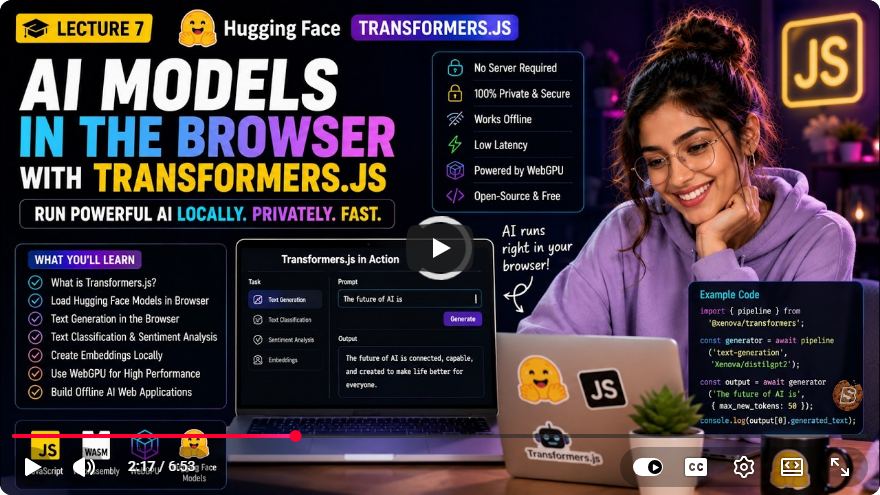
Run AI Models in the Browser with Transformers.js: A Step-by-Step Guide
Welcome to our latest tutorial, where we will explore how to run AI models directly within your web browser using Transformers.js. This powerful tool allows developers to leverage AI capabilities without relying on remote servers or API keys, providing a privacy-first approach to web applications. In this tutorial, we will cover the installation process, how to use the pipeline API for tasks like sentiment analysis, and the advantages and limitations of running models directly in the browser.
What is Transformers.js?
Transformers.js is the official JavaScript version of the Hugging Face Transformers library. It allows developers to run many of the same models used in Python directly in the browser using WebAssembly and the ONNX runtime. This means that you can create applications where no user data leaves their device, thereby enhancing privacy and security.
Key Features of Transformers.js:
- Client-Side Processing: No server or API key required.
- Privacy-Focused: User data never leaves the device.
- Offline Capabilities: Once cached, models can be used without an internet connection.
- Low Latency: Faster responses after the initial model download.
Step 1: Installing Transformers.js
To get started, you need to install the Transformers.js package. You can do this using Node Package Manager (NPM). Open your terminal and run the following command:
npm install @huggingface/transformers
Step 2: Setting Up the Project
Once you have installed the package, you will create an index.js file to import and utilize the pipeline API. This API is designed to feel similar to the Python version, making it easier for developers familiar with either language.
Importing the Pipeline
In your index.js, begin by importing the pipeline:
import { pipeline } from '@huggingface/transformers';
Example: Sentiment Analysis
Below is a sample code snippet that demonstrates how to perform sentiment analysis using the DistilBERT model.
const sentimentAnalysis = async () => {
    const classifier = await pipeline('sentiment-analysis', 'distilbert-base-uncased-finetuned-sst2-english');

    const text = "I love using Transformers.js!";
    const result = await classifier(text);

    console.log(result);
};

sentimentAnalysis();
Explanation of the Code:
- Pipeline Creation: The pipeline is initialized with the task (
sentiment-analysis) and model (distilbert-base-uncased-finetuned-sst2-english). - Model Weights: The first time the model is run, the ONNX weights will be downloaded and cached for future use, minimizing load times on subsequent runs.
Step 3: Running the Application
Once your index.js file is set up, you can run your application. Initially, the model will take some time to download, but subsequent runs will be significantly faster due to caching.
User Interface
You can create a simple UI to allow users to input text for sentiment analysis. Here’s how the basic structure might look:
<!DOCTYPE html>
<html lang="en">
<head>
    <meta charset="UTF-8">
    <meta name="viewport" content="width=device-width, initial-scale=1.0">
    <title>Sentiment Analysis with Transformers.js</title>
</head>
<body>
    <h1>Sentiment Analysis</h1>
    <textarea id="inputText" placeholder="Type your text here..."></textarea>
    <button id="analyzeBtn">Analyze Sentiment</button>
    <div id="output"></div>

    <script src="index.js"></script>
</body>
</html>
Connecting the UI and Logic
Add an event listener to the button that triggers the analysis when clicked:
document.getElementById('analyzeBtn').addEventListener('click', async () => {
    const text = document.getElementById('inputText').value;
    const result = await classifier(text);
    document.getElementById('output').innerText = `Sentiment: ${result[0].label}, Confidence: ${result[0].score}`;
});
Advantages of Running Models in the Browser
- Privacy: All data processing occurs on the client side.
- Cost-Effective: Once downloaded, inference is free without additional API costs.
- Offline Functionality: Models can work without an internet connection after the first download.
- Low Latency: Faster response times after the initial load.
Limitations to Consider
While the benefits are compelling, there are some limitations you should be aware of:
- Model Size: Browser memory limits can restrict the size of models you can run.
- Initial Load Time: The first run may take longer due to model weight downloads.
- Device Performance: The speed and efficiency depend on the user's device capabilities.
When to Use Transformers.js vs. Remote Inference
Use Transformers.js when:
- Privacy is a priority.
- You want offline support.
- The model is small.
- You want to avoid API costs.
Use Remote Inference when:
- You need large or higher-quality models.
- Consistent performance across devices is essential.
- You require models not yet converted to ONNX.
Conclusion
In this tutorial, we explored how to run AI models directly in the browser using Transformers.js. We covered installation, how to use the pipeline API for sentiment analysis, and discussed the advantages and limitations of this approach. This powerful capability opens up new possibilities for building privacy-first AI web applications.
Challenge
As a final challenge, try adding another browser-based task, such as image classification or translation, using Transformers.js in a new tab!
Thank you for following along, and we hope you found this tutorial helpful. If you did, please like and subscribe for more content!
Connect with SkillBakery Studios
Explore more tutorials, tools, and resources:
Posted by SkillBakery Studios


 Hello, my name is Jack Sparrow. I'm a 50 year old self-employed Pirate from the Caribbean.
No comments:
Post a Comment