
Master Meteor JS : Meteor app structure - Web Development

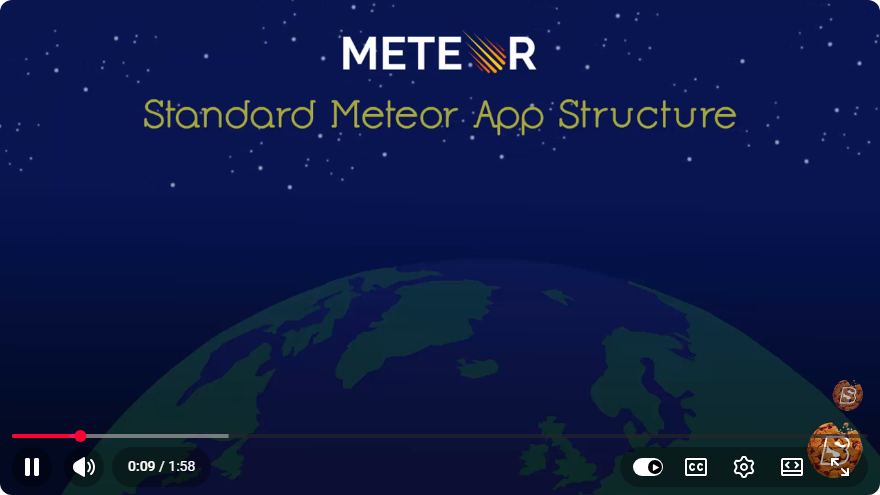
Master Meteor JS: Understanding the App Structure
Meteor JS is a powerful, full-stack JavaScript platform that allows developers to build real-time web and mobile applications in record time. In this blog post, we will explore the structure of a Meteor application, which is essential for any developer looking to master this framework.
What is Meteor JS?
Meteor JS is an open-source framework that enables developers to build applications using JavaScript on both the client and server sides. It seamlessly integrates with popular libraries and frameworks, such as React and Angular, and provides a robust set of features for building real-time applications.
The Basic Structure of a Meteor Application
When you create a new Meteor project, it follows a specific structure that helps organize your code and separate concerns. Let's take a closer look at the key components of a Meteor application.
1. Project Directory
When you initialize a new Meteor project using the command:
meteor create myApp
You will see a directory structure similar to the following:
myApp/
├── client/
├── server/
├── imports/
├── public/
├── package.json
├── meteor
└── README.md
2. Client Directory
The client directory is where all your front-end code resides. This includes:
- HTML files
- CSS files
- Client-side JavaScript code
All files in the client directory are automatically loaded by Meteor, making it easy to manage client-side resources.
3. Server Directory
The server directory is dedicated to server-side code. This includes:
- Server-side JavaScript files
- Meteor methods
- Publications and subscriptions
Files in this directory are only accessible on the server, ensuring that sensitive data and logic remain secure.
4. Imports Directory
The imports directory is where you can organize your application into modules. It is not automatically loaded, allowing you to control what gets imported. This is particularly useful for large applications where you want to maintain separation of concerns.
For example, you could have a structure like this:
imports/
├── api/
│   ├── users.js
│   └── posts.js
└── ui/
    ├── components/
    └── layouts/
5. Public Directory
The public directory is used for static assets that you want to make publicly available, such as images, fonts, or other files. Anything placed in this directory can be accessed directly via a URL.
6. Package.json and Meteor file
package.json: This file manages package dependencies for your Meteor application. It is standard for Node.js applications and contains metadata about your project.
meteor: This file contains configuration settings specific to the Meteor framework.
7. README.md
The README.md file is a markdown file that serves as documentation for your application. It’s a good practice to keep this updated with instructions on how to set up, run, and contribute to your project.
Conclusion
Understanding the structure of a Meteor application is crucial for effective development and maintainability. With its organized directories and clear separation of client and server code, Meteor allows developers to quickly build and deploy real-time applications. As you dive deeper into Meteor, remember to leverage its modular capabilities with the imports directory to keep your codebase clean and manageable.
By mastering the app structure, you will be well on your way to becoming proficient in Meteor JS. Happy coding!
Connect with SkillBakery Studios
Explore more tutorials, tools, and resources:
Posted by SkillBakery Studios


 Hello, my name is Jack Sparrow. I'm a 50 year old self-employed Pirate from the Caribbean.
No comments:
Post a Comment