
Running a PHP Page - Configuring Browser Setting 1 minute
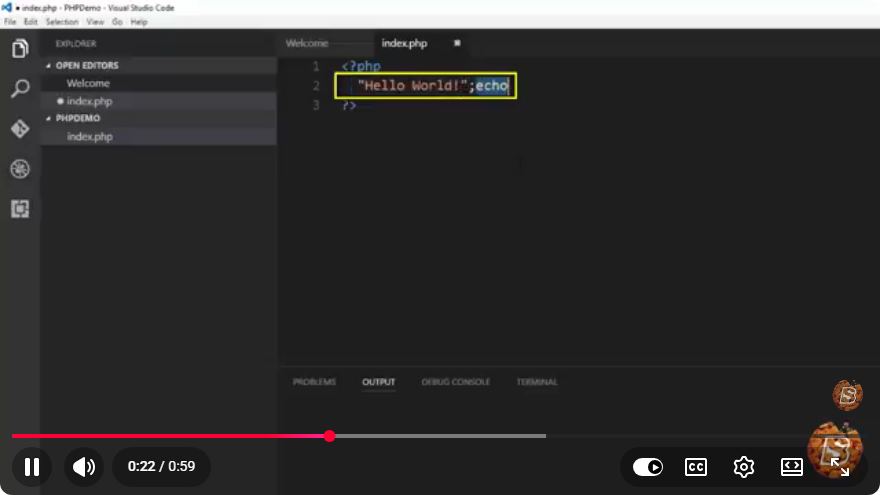
Running a PHP Page: Configuring Browser Settings in 1 Minute
In today’s fast-paced web development environment, setting up your PHP environment can feel overwhelming, especially when attempting to run PHP pages directly from your browser. In this tutorial, we will guide you through the essential steps to configure your browser settings to successfully run a PHP page. This process is straightforward and can be completed in about a minute.
What You Need
Before we dive into the steps, ensure you have the following:
- A local server setup: This could be XAMPP, WAMP, MAMP, or any other local server software that supports PHP.
- Browser: Most modern browsers like Chrome, Firefox, and Edge will work.
Step-by-Step Configuration
Step 1: Install a Local Server
If you haven't already installed a local server, follow these steps:
- Download and Install: Choose a local server package that suits your operating system. For instance, XAMPP is popular and easy to use.
- Start the Local Server: Open your control panel and start the Apache server. This will allow you to run PHP pages locally.
Step 2: Create Your PHP File
Locate the Document Root: For XAMPP, this is usually in the
C:\xampp\htdocsdirectory.Create a New PHP File: Open your text editor or IDE and create a new file named
test.php. Add the following code:<?php echo "Hello, World!"; ?>Save the File: Ensure you save it in the
htdocsdirectory.
Step 3: Open Your Browser
Now that you have your PHP file set up, it’s time to configure your browser settings:
Open Your Web Browser: Launch the browser you prefer (Chrome, Firefox, etc.).
Enter the Localhost URL: In the address bar, type the following:
http://localhost/test.phpPress Enter: If everything is set up correctly, you should see "Hello, World!" displayed in your browser.
Step 4: Troubleshooting Common Issues
If you encounter any issues while trying to load your PHP page, here are a few common troubleshooting tips:
- Server Not Running: Make sure the local server (e.g., Apache) is running.
- Incorrect File Path: Double-check that the PHP file is in the
htdocsdirectory and that you are using the correct file name in the URL. - Firewall Issues: Sometimes, firewalls block local server connections. Ensure your firewall is not preventing access to localhost.
Conclusion
Running a PHP page from your browser is a vital skill for any web developer. By setting up a local server and correctly configuring your browser settings, you can quickly test and develop PHP applications. Following the steps outlined in this tutorial, you should be able to run PHP pages in just a minute.
For further learning, consider exploring additional PHP features and experimenting with more complex scripts. Happy coding!
Connect with SkillBakery Studios
Explore more tutorials, tools, and resources:
Posted by SkillBakery Studios


 Hello, my name is Jack Sparrow. I'm a 50 year old self-employed Pirate from the Caribbean.
No comments:
Post a Comment