
Windows 10 : Customize Default Apps And Edge Browser
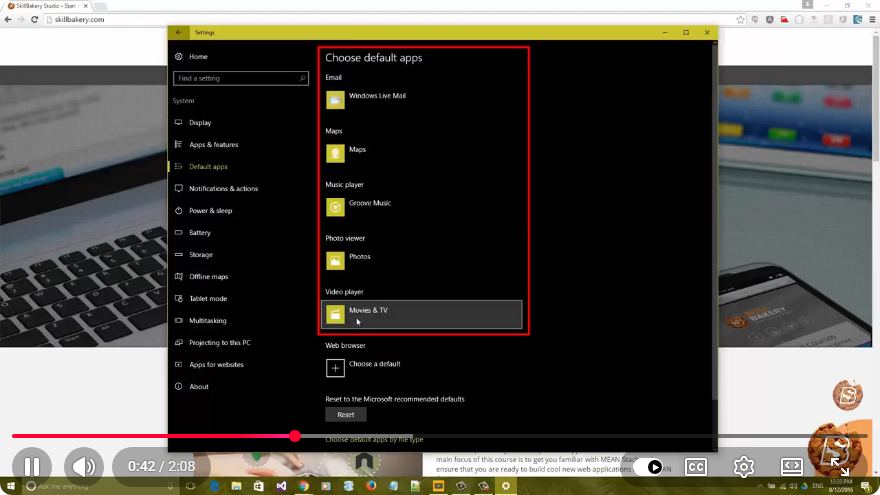
Customizing Default Apps and the Edge Browser in Windows 10
Windows 10 is designed to provide users with a customizable and user-friendly experience. One of the essential aspects of personalizing your Windows environment is configuring default applications and optimizing the Microsoft Edge browser. In this tutorial, we will guide you through the process of customizing your default apps and making the most out of the Edge browser.
Table of Contents
Understanding Default Apps
Default apps in Windows 10 are the applications that automatically open when you click on a file type or a link. For example, if you click a .jpg file, Windows will use the default photo viewer you have set up. Similarly, clicking a link will open your default web browser. Customizing these settings allows you to tailor your Windows experience to your preferences.
How to Change Default Apps
Changing Default Web Browser
To change your default web browser to something other than Microsoft Edge, follow these steps:
- Open Settings: Click on the Start Menu and select the gear icon to open the Settings window.
- Go to Apps: In the Settings window, click on "Apps."
- Default Apps: On the left sidebar, select "Default apps."
- Web Browser: Scroll down to the "Web browser" section. Here, you will see the current default browser (likely Microsoft Edge). Click on it to see a list of installed browsers.
- Select Your Browser: Choose your preferred web browser from the list. Once selected, it will now be set as your default.
Changing Other Default Apps
You can also change default apps for various file types and protocols:
- In the "Default apps" section, scroll down to the "Choose default apps by file type" or "Choose default apps by protocol."
- Click on the file type or protocol you want to change (e.g., .pdf, .mp3).
- Select the desired application from the list.
This allows you to customize which applications handle different types of files and links.
Customizing Microsoft Edge
Microsoft Edge comes with a range of features that can be customized to enhance your browsing experience. Here are some key customization options:
Setting Up Your Homepage
To set a specific homepage in Microsoft Edge:
- Open Edge: Launch the Microsoft Edge browser.
- Access Settings: Click on the three-dot menu in the top right corner and select "Settings."
- Appearance: On the left sidebar, choose "Appearance."
- Show Home Button: Toggle the "Show home button" option to "On." You can then enter the URL of the homepage you want.
- New Tab Page: You can also customize what opens when you open a new tab by selecting the appropriate option under the "New tab page" settings.
Managing Privacy Settings
To ensure your browsing experience is secure, Microsoft Edge offers several privacy settings:
- Privacy, Search, and Services: In the Settings menu, choose "Privacy, search, and services."
- Manage Privacy Settings: Here, you can adjust various privacy settings, including tracking prevention, clear browsing data, and more.
- Security Features: Consider enabling features such as "Microsoft Defender SmartScreen" for protection against phishing and malicious websites.
Conclusion
Customizing your default apps and optimizing the Microsoft Edge browser is a straightforward process that can significantly enhance your Windows 10 experience. By following the steps outlined in this tutorial, you can ensure that your system operates according to your preferences, making your daily tasks more efficient and enjoyable. Whether you prefer a different web browser or want to fine-tune your Edge settings, these adjustments are both simple and effective. Happy customizing!
Connect with SkillBakery Studios
Explore more tutorials, tools, and resources:
Posted by SkillBakery Studios


 Hello, my name is Jack Sparrow. I'm a 50 year old self-employed Pirate from the Caribbean.
No comments:
Post a Comment