
Windows Forms - Resolving Cross Threaded Exceptions 46 seconds
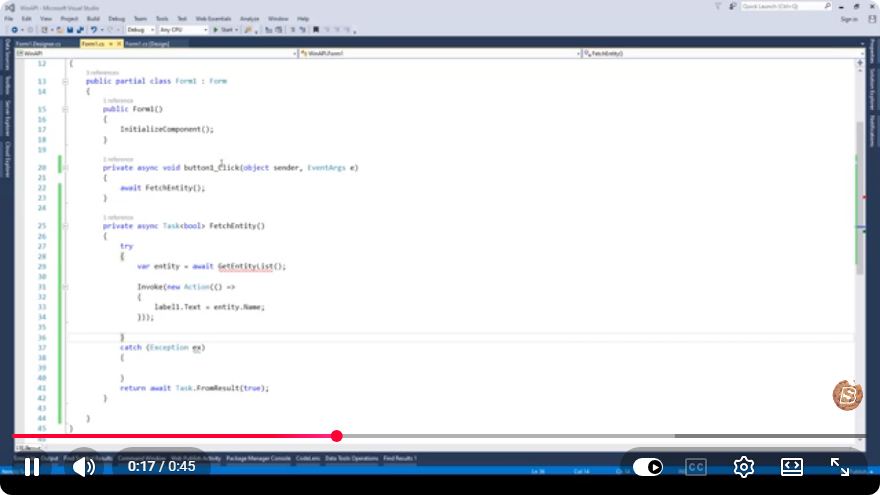
Resolving Cross-Threaded Exceptions in Windows Forms Applications
Windows Forms (WinForms) is a powerful GUI framework for building desktop applications in the .NET environment. However, one common issue developers encounter is cross-threaded exceptions. This blog post will delve into what these exceptions are, why they occur, and how to resolve them effectively.
Understanding Cross-Threaded Exceptions
What Are Cross-Threaded Exceptions?
In WinForms, only the thread that created a control can access its properties and methods. If you attempt to update a control from a different thread, the runtime throws a InvalidOperationException, indicating that you are trying to perform a cross-thread operation.
Why Do They Occur?
Cross-threaded exceptions typically arise when:
- You have long-running operations (like network calls or file processing) that are executed on the UI thread, causing the UI to freeze.
- You're using background threads (like
BackgroundWorker,Task, orThread) to perform operations and then trying to update the UI directly from those threads.
Best Practices for Resolving Cross-Threaded Exceptions
To handle cross-threaded exceptions, you need to marshal calls to the UI thread. Here are common methods to do this:
1. Using Invoke Method
The Control.Invoke method is a common way to ensure that code executing on a non-UI thread can safely update UI controls.
Example
private void UpdateLabel(string message)
{
    if (label1.InvokeRequired)
    {
        label1.Invoke(new Action<string>(UpdateLabel), message);
    }
    else
    {
        label1.Text = message;
    }
}
In this example, the UpdateLabel method checks if an invocation is required (i.e., if the call is coming from a different thread). If it is, it uses Invoke to call itself on the UI thread.
2. Using BeginInvoke Method
Similar to Invoke, but BeginInvoke is asynchronous, meaning it does not block the calling thread and returns immediately.
Example
private void UpdateLabelAsync(string message)
{
    if (label1.InvokeRequired)
    {
        label1.BeginInvoke(new Action<string>(UpdateLabelAsync), message);
    }
    else
    {
        label1.Text = message;
    }
}
3. Using Task.Run and async/await
For modern applications, you can use Task.Run and async/await to run tasks asynchronously, keeping the UI responsive without blocking it.
Example
private async void LoadDataAsync()
{
    string data = await Task.Run(() =>
    {
        // Simulate a long-running operation
        Thread.Sleep(2000);
        return "Data loaded!";
    });

    label1.Text = data; // Safe to update UI
}
In this example, LoadDataAsync runs the long-running operation on a background thread and updates the UI once it completes.
Conclusion
Handling cross-threaded exceptions in Windows Forms applications is crucial for maintaining a responsive user interface. By using methods like Invoke, BeginInvoke, and leveraging async/await, you can ensure that your application runs smoothly without encountering runtime exceptions.
Further Learning
- Explore more about threading in .NET.
- Investigate the use of
BackgroundWorkerfor multithreaded applications. - Look into more recent frameworks, such as WPF or UWP, that provide different paradigms for handling threading and UI updates.
By mastering these techniques, you can improve your WinForms applications and provide a better user experience. Happy coding!
Connect with SkillBakery Studios
Explore more tutorials, tools, and resources:
Posted by SkillBakery Studios


 Hello, my name is Jack Sparrow. I'm a 50 year old self-employed Pirate from the Caribbean.
No comments:
Post a Comment