
ASP.NET MVC - Fetch latest version script in browser 57 seconds
ASP.NET MVC - Fetch Latest Version Script in Browser
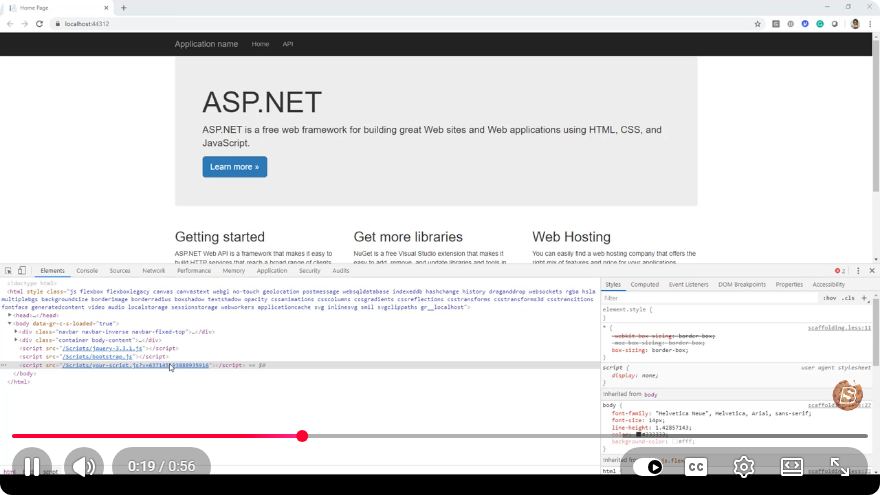
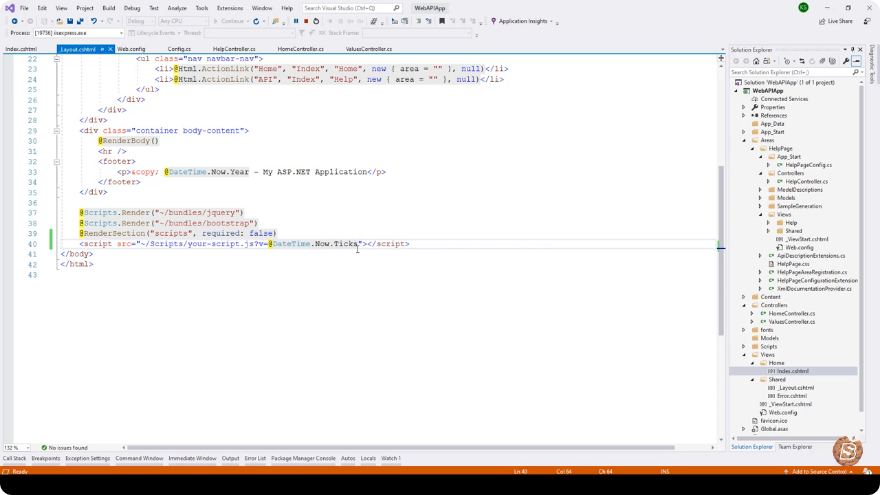
In the world of web development, ensuring that users always access the latest version of your JavaScript and CSS files is crucial for optimal performance and user experience. This blog post is inspired by the YouTube video titled "ASP.NET MVC - Fetch latest version script in browser" and aims to provide a detailed guide on how to implement this feature within your ASP.NET MVC applications.
What is Versioning?
Versioning in web applications refers to the practice of appending a version number or a hash to your static file URLs (like JavaScript and CSS). This strategy helps in cache busting, ensuring that users see the most recent updates to your files instead of relying on potentially outdated cached versions.
Why is Versioning Important?
- User Experience: Users get the latest features and fixes immediately.
- Performance: Proper caching can speed up load times while still ensuring up-to-date content.
- Debugging: Clear versioning can assist in identifying issues by correlating them with specific versions of files.
How to Implement Versioning in ASP.NET MVC
Step 1: Update Your Web.Config
To fetch the latest version of your scripts and stylesheets, you will want to ensure that your application can dynamically append a version number to your files. One common technique is to use the web.config file to store the version number.
Here’s how you can do it:
<configuration>
  <appSettings>
    <add key="ScriptVersion" value="1.0.0" />
  </appSettings>
</configuration>
In this example, we have added an app setting ScriptVersion with a value of 1.0.0. You can update this value whenever you deploy a new version of your application.
Step 2: Create a Helper Method
Next, you need a helper method that will append the version number to your script and stylesheet references. You can create a static method in a utility class:
public static class VersionHelper
{
    public static string GetVersionedUrl(string url)
    {
        var version = ConfigurationManager.AppSettings["ScriptVersion"];
        return $"{url}?v={version}";
    }
}
Step 3: Use the Helper Method in Your Views
Now that you have a helper method, you can use it in your Razor views to reference your JavaScript and CSS files. Here's how you can do it:
<!DOCTYPE html>
<html lang="en">
<head>
    <meta charset="UTF-8">
    <meta name="viewport" content="width=device-width, initial-scale=1.0">
    <link rel="stylesheet" href="@VersionHelper.GetVersionedUrl("~/Content/site.css")" />
    <title>Your ASP.NET MVC App</title>
</head>
<body>
    <script src="@VersionHelper.GetVersionedUrl("~/Scripts/jquery-3.5.1.min.js")"></script>
    <script src="@VersionHelper.GetVersionedUrl("~/Scripts/app.js")"></script>
</body>
</html>
Step 4: Deploying Updates
Whenever you make updates to your JavaScript or CSS files, remember to update the version number in your web.config. This will ensure that users receive the latest files when they refresh their browsers.
Conclusion
By implementing versioning in your ASP.NET MVC application, you ensure that users always have access to the latest updates without running into issues with cached files. This technique not only enhances user experience but also simplifies maintenance and debugging.
With the methods outlined in this tutorial, you can easily manage your versioning strategy and keep your web application running smoothly. Good luck with your ASP.NET MVC projects, and don’t forget to keep your scripts fresh!
Connect with SkillBakery Studios
Explore more tutorials, tools, and resources:
Posted by SkillBakery Studios


 Hello, my name is Jack Sparrow. I'm a 50 year old self-employed Pirate from the Caribbean.
No comments:
Post a Comment