
MongoDB : Download mongodb
Quick Guide to Downloading MongoDB in Under Two Minutes
MongoDB, a popular NoSQL database, has gained immense popularity among developers for its flexibility, scalability, and ease of use. Whether you’re building web applications, mobile apps, or any other data-driven project, MongoDB provides an effective solution for managing your data. In this tutorial, we will guide you through the process of downloading MongoDB in just under two minutes.
Prerequisites
Before we dive into the download process, ensure you have the following:
- A computer with an internet connection.
- Administrative access to your machine (for installation).
- Familiarity with command line interfaces (CLI) can be beneficial but is not mandatory.
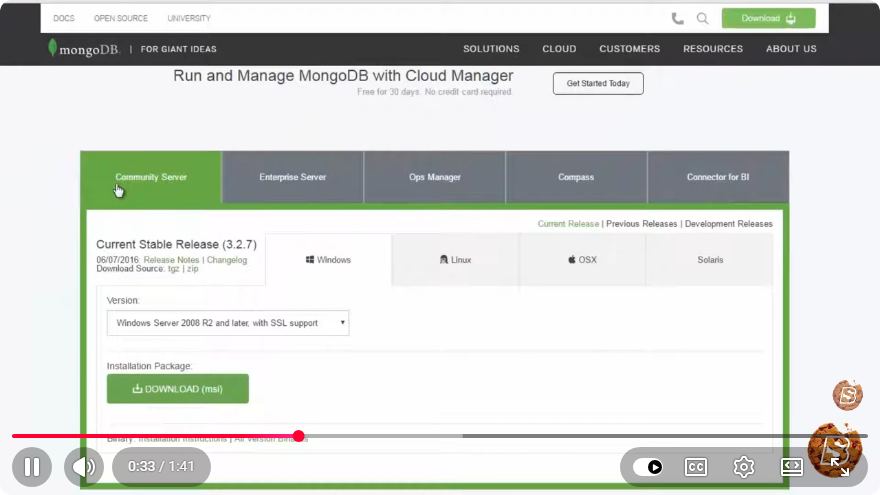
Step 1: Visit the MongoDB Download Center
- Open your web browser.
- Navigate to the MongoDB Download Center.
Step 2: Choose the Right Version
Once you're on the download page, you will see several options for MongoDB:
Select the Version
- Version: Choose the latest stable release from the dropdown menu. The latest version often includes important security and performance updates.
Select the Operating System
- Operating System: Choose your operating system (Windows, macOS, or Linux). Make sure to select the appropriate version (e.g., x64 for 64-bit systems).
Package Type
- Package Type: For most users, the default package type (e.g., MSI for Windows, TGZ for macOS and Linux) is suitable. If you're an advanced user, you might want to explore other options.
Step 3: Start the Download
After setting your preferences:
- Click the Download button.
- Your download should begin automatically. If it doesn’t, you can click on the provided link to start the download manually.
Note
The file size may vary depending on the version and operating system. Ensure you have enough disk space before proceeding.
Step 4: Installation
Once the download completes, follow these steps to install MongoDB:
For Windows
- Locate the downloaded
.msifile and double-click it to start the installer. - Follow the prompts in the installation wizard:
- Accept the license agreement.
- Choose the installation type (Complete is recommended).
- Select the installation location or leave it at the default.
- When prompted, choose to install MongoDB as a Service to allow it to run in the background.
- Complete the installation process.
For macOS
- Open the Terminal.
- Navigate to the directory where the downloaded
.tgzfile is located. - Extract the files using the following command:
tar -xvzf mongodb-macos-x86_64-*.tgz - Move the extracted files to your desired location. For example:
mv mongodb-macos-x86_64-* /usr/local/mongodb - Add MongoDB to your system PATH by editing your
.bash_profileor.zshrcfile:export PATH=$PATH:/usr/local/mongodb/bin
For Linux
- Open the Terminal.
- Navigate to the directory where the downloaded
.tgzfile is located. - Extract the files:
tar -xvzf mongodb-linux-x86_64-*.tgz - Move the files to
/usr/local/mongodb:sudo mv mongodb-linux-x86_64-* /usr/local/mongodb - Update your
.bashrcor.bash_profileto include MongoDB in your PATH:echo 'export PATH=$PATH:/usr/local/mongodb/bin' >> ~/.bashrc source ~/.bashrc
Step 5: Verify the Installation
To ensure MongoDB is installed correctly, open your terminal (or command prompt on Windows) and type:
mongod --version
If you see the version number, congratulations! You’ve successfully downloaded and installed MongoDB.
Conclusion
Now that you have MongoDB installed, you can begin exploring its powerful features. Whether you're developing applications or learning about databases, MongoDB provides a robust platform to work with.
For further learning, consider checking out the official MongoDB Documentation for tutorials, guides, and best practices.
Happy coding!
Connect with SkillBakery Studios
Explore more tutorials, tools, and resources:
Posted by SkillBakery Studios


 Hello, my name is Jack Sparrow. I'm a 50 year old self-employed Pirate from the Caribbean.
No comments:
Post a Comment