
Lecture-9: RAG for Beginners – Day 9: Semantic Search with Supabase & Embeddings | Build AI Search
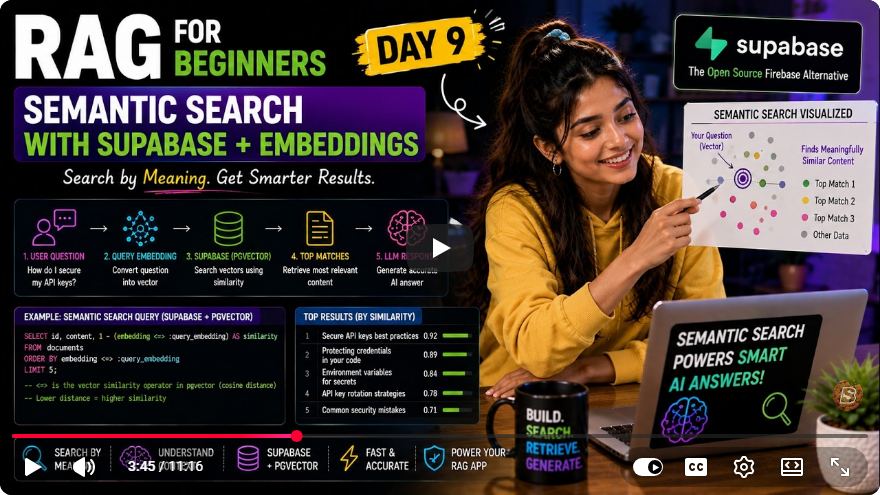
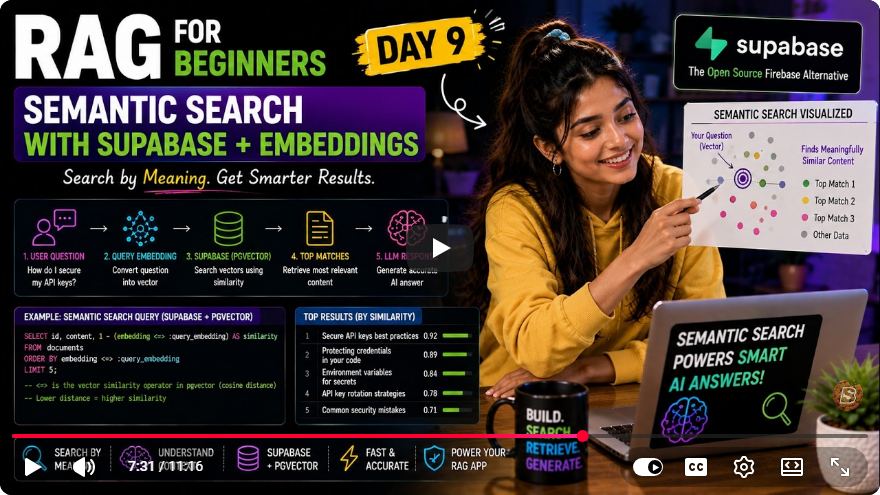
Mastering Semantic Search with Supabase and Embeddings: A Beginner's Guide
Welcome to Day 9 of our series on Retrieval Augmented Generation (RAG) for beginners! In this tutorial, we will dive deep into the world of semantic search using Supabase and embeddings. By the end of this post, you’ll have a solid understanding of how to implement semantic search functionality, allowing you to search data by meaning rather than exact text matches.
What is Semantic Search?
Semantic search is a method that improves search accuracy by understanding the intent and contextual meaning of search queries. Unlike traditional keyword-based search, which looks for exact matches, semantic search interprets the meaning behind the words. For example, a query like "I want a film with lots of emotion and strong characters" can return results that convey similar sentiments even if the wording differs, such as "I really enjoyed the deep emotional story and character development."
Why Use Semantic Search?
- Enhanced User Experience: Users get results that are more relevant to their queries.
- Flexibility: It can understand synonyms and related concepts, making it easier to find information.
- Contextual Relevance: It fetches results based on meaning, which is especially useful in applications like content recommendation, customer support, and more.
Setting Up Your Environment
Before we start building our semantic search function with Supabase, you should have the following:
- A Supabase account and an active project.
- Basic understanding of SQL and JavaScript.
- Access to a code editor and terminal for running your scripts.
Step 1: Creating Your SQL Function
Open your Supabase interface and navigate to the SQL editor. Here, we’ll create the SQL function that will handle the semantic search. Below is the SQL code you need to implement.
CREATE OR REPLACE FUNCTION match_documents(query_embedding float8[], match_threshold float8 DEFAULT 0.5, match_count int DEFAULT 3)
RETURNS TABLE (id int, content text, similarity float8) AS $$
BEGIN
    RETURN QUERY
    SELECT
        id,
        content,
        1 - (documents.embedding <=> query_embedding) as similarity
    FROM
        documents
    WHERE
        1 - (documents.embedding <=> query_embedding) > match_threshold
    ORDER BY
        similarity ASC
    LIMIT match_count;
END;
$$ LANGUAGE plpgsql;
Explanation of the Code:
Function Parameters:
query_embedding: The embedding of the user’s query.match_threshold: Minimum similarity score accepted (default is 0.5).match_count: Number of results to return (default is 3).
Return Type: The function returns a table containing
id,content, andsimilarity.Core Logic:
- The function calculates the cosine distance using the
<=>operator, which returns a similarity score. - This score is then filtered based on the
match_threshold, and results are ordered by similarity.
- The function calculates the cosine distance using the
Step 2: Running the SQL Function
After creating the SQL function, run it by clicking the "Run" button. If implemented correctly, you should see a success message, indicating that the function is ready for use.
Step 3: Implementing the Semantic Search in JavaScript
Now that we have our SQL function, we can create a JavaScript file to perform the semantic search. Create a new file named 09_semantic_search.js and insert the following code:
const { createEmbedding, Supabase } = require('./yourSupabaseFile');

async function semanticSearch(query) {
    console.log('User Query: ', query);
    console.log('Creating embedding for the query...');
    const queryEmbedding = await createEmbedding(query);

    // Call the matchDocuments function from Supabase
    const { data, error } = await Supabase.rpc('match_documents', {
        query_embedding: queryEmbedding,
        match_threshold: 0.5,
        match_count: 3
    });

    if (error) {
        console.error('Error fetching results:', error);
    } else {
        console.log('Most Similar Documents:', data);
    }
}

// Example usage
semanticSearch("I want a movie with deep emotions and strong characters");
Explanation of the JavaScript Code:
- Imports: We import necessary functions to create embeddings and connect to Supabase.
- Function
semanticSearch(query):- Logs the user query.
- Creates an embedding for the query.
- Calls the
match_documentsSQL function using Supabase’s RPC (Remote Procedure Call) method. - Logs the results or any errors that may occur.
Step 4: Testing Your Semantic Search
To test your semantic search function, open your terminal and run the JavaScript file:
node 09_semantic_search.js
You should see the output in your console. If everything is set up correctly, the results will be displayed based on similarity scores, reflecting the semantic relevance to the original query.
Troubleshooting Common Issues
No Results Returned: If you don’t see results, ensure that:
- Your row-level security settings are configured correctly.
- You have data in your
documentstable. - The embeddings are correctly generated and stored.
Row-Level Security: You can disable row-level security for testing with the following SQL command:
ALTER TABLE documents DISABLE ROW LEVEL SECURITY;
- Schema Reload: If your updates aren’t recognized, run:
NOTIFY PGRST reload schema;
Conclusion
Congratulations! You have successfully implemented semantic search using Supabase and embeddings. This powerful feature can significantly enhance user experience by providing more relevant results based on the meaning of queries rather than exact text matches.
In the next session, we’ll explore how to turn these results into conversational responses using OpenAI technologies. If you found this tutorial helpful, please like and subscribe for more content like this. Happy coding!
Connect with SkillBakery Studios
Explore more tutorials, tools, and resources:
Posted by SkillBakery Studios


 Hello, my name is Jack Sparrow. I'm a 50 year old self-employed Pirate from the Caribbean.
No comments:
Post a Comment